Verifying Integration Broker Setup
To verify that Integration Broker is set up for your application:
-
In your PeopleSoft application, navigate to
-
Verify that the Gateway URL field references the correct machine name.
-
Click the Ping Gateway button.
-
Verify that the message returns a status of ACTIVE.
-
Click the Gateway Setup Properties link.
-
Sign on to access integrationGateway.properties file.
-
The default user ID is administrator, and the default password was created when PIA was installed (please contact your security administrator for the password).
-
Verify that the Gateway Default App Server URL is specified.
This is an example of the Gateways page:
This example illustrates the fields and controls on the Integration Broker Gateways page.
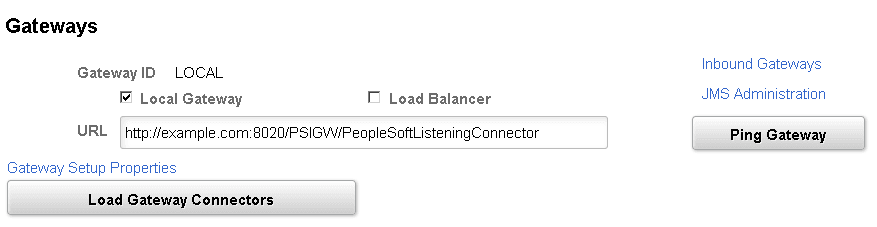
The port number in the URL (8020 in this example) is the http port of the web server.
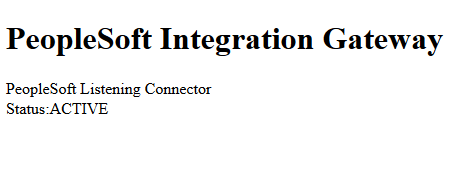
This is an example of a Ping message showing ACTIVE status:
This example illustrates a successful Integration Gateway Ping message.
Click the Gateway Setup Properties link on the Gateways page to access the PeopleSoft Node Configuration page, as shown in this example:
This example illustrates the fields and controls on the PeopleSoft Node Configuration page.
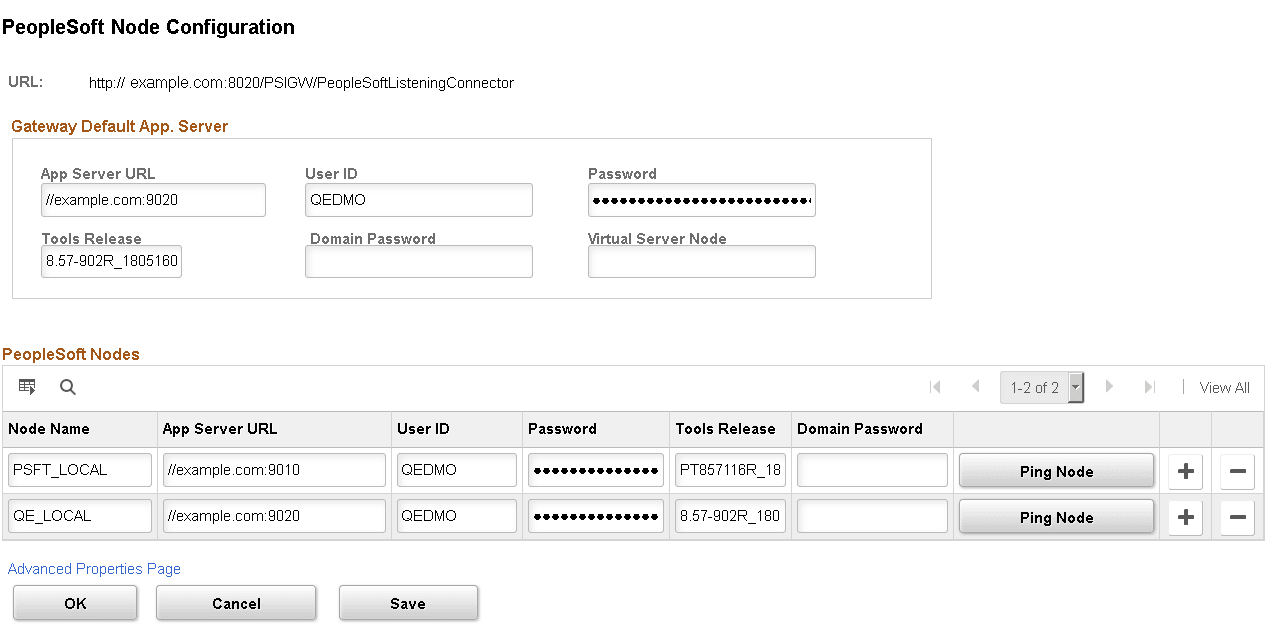
The port number in the App Server URL (9010 in this example) generally corresponds with the JSL Port Number as defined in the Application Server configuration. The default port number is 9000.
When the web server is connected to more than one database you will need to enter a node name, as defined in PeopleSoft Nodes on the PeopleSoft Node Configuration page, in the Node ID field of the PTF Signon dialog box. Contact your Integration Broker administrator to determine the correct node name to use. If no node is defined in PeopleSoft Nodes on this page, leave the Node ID field of the PTF Signon dialog blank.
See Creating a Connection to a PTF Environment.
Note:
If you rerun the PIA installer, the PeopleSoft Node Configuration page data is cleared and needs to be reentered.
Verify that the Default User ID for the ANONYMOUS node has, at a minimum, a PTF User role.
-
Navigate to .
-
Select the ANONYMOUS node.
-
Note the Default User ID.
-
Navigate to .
-
Select the User ID you identified in Step 3.
-
Access the Roles tab.
-
Verify that one of the PTF roles is present.
See Setting Up Security.
If Integration Broker is not set up correctly, contact your Integration Broker administrator.