Creating a New Test Case
To create a new test case:
-
With a test open, click the New button to the right of the Test Case field.
-
Enter a name for the new test case.
-
(Optional) In the Test Case Descr field, enter a description for the test case.
-
(Optional) Click the Test Case Properties icon to enter a long description of the test case.
It is a good practice to provide a good description for a test case. Test case names are limited in length and provide the user with little information.
-
(Optional) Click the Test Case Comment icon to add a comment for the test case or insert timestamp.
For details, see Test Window Fields
-
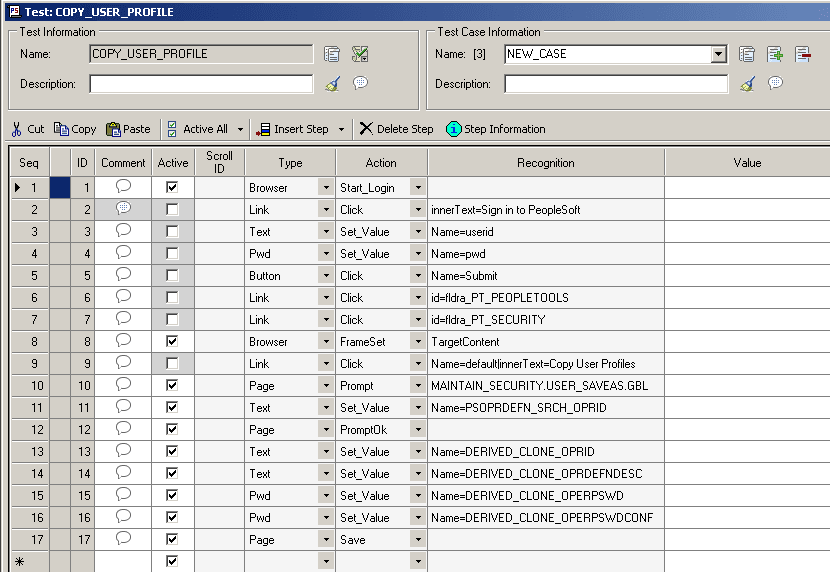
The new test case provides a set of new, empty Value fields for all the steps of the test.
Enter a new value for each step that requires a value.
-
Save the test case.
This example illustrates a new test case with blank values.