Defining Advanced Options
Use the Define Runtime Options - Advanced Options page (PSPTTSTADVOPTIONS) to define multiple portal URLs and to enable persistent variables.
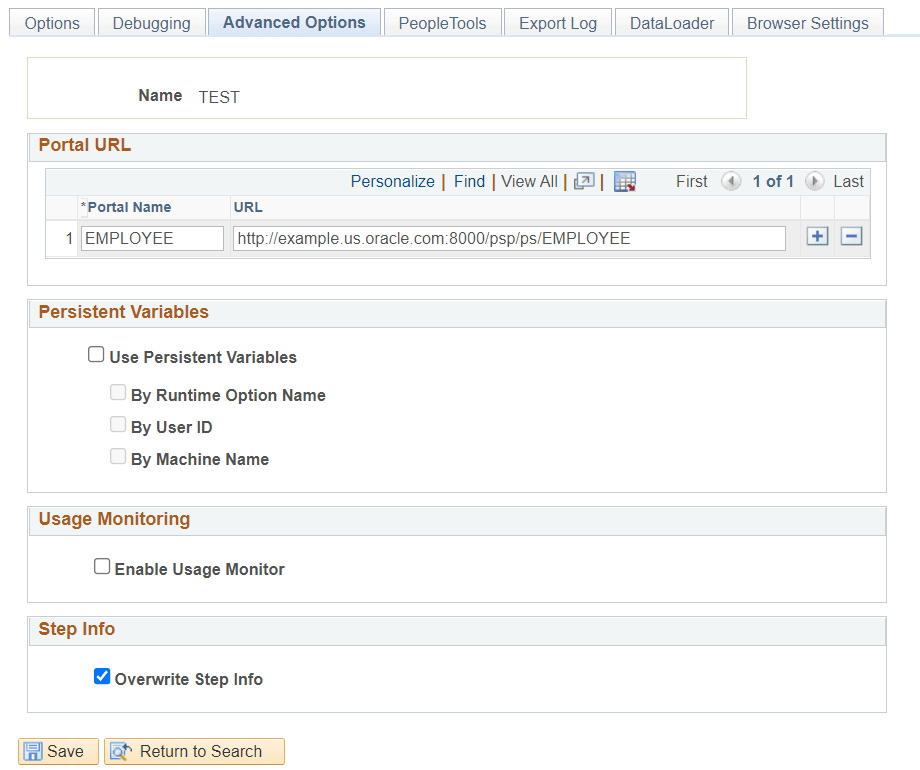
PTF uses the portal URL to access the component when there is a step in the test to set the browser URL (Browser.Set_URL). See Set_URL. To add a portal URL, click the Add icon. To remove a portal URL click the Delete icon.
Navigation:
Select the Advanced Options tab.
This example illustrates the fields and controls on the Define Runtime Options - Advanced Options page. You can find definitions for the fields and controls later on this page.
| Field or Control | Description |
|---|---|
|
Portal Name |
Enter a portal name. Note: The name is saved in upper case. |
|
URL |
Enter the portal URL. The portal URL is entered in the following format: For example: http://myserver.example.com:8010/psp/ps/EMPLOYEE/QE_LOCAL/ Note: The ending backslash / is optional |
|
Use Persistent Variables |
Select to enable saving and using persistent variables. Selecting this option enables the other fields in this group. |
|
By Runtime Option Name |
This option is automatically selected when you select the Use Persistent Variables check box. Persistent variables are stored in the database keyed by runtime option name. Persistent variables can also be keyed by User ID, machine name or both. |
|
By User ID |
Select to store and retrieve persistent variables by PTF user ID. |
|
By Machine Name |
Select to store and retrieve persistent variables by machine name. |
|
Enable Usage Monitor |
Select this option to enable managed object tracking with usage monitor during test runtime. When this option is selected, PTF passes the test and test case values as parameters to the usage monitor during test runtime when it encounters the Usage Monitor step type. Note: The PeopleSoft application must be properly configured for Usage Monitor if you select this option. For more information about configuring Usage Monitor, see Usage Monitor: Enabling Usage Monitor. For more information about configuring Usage Monitor, see Usage Monitor: Enabling Usage Monitor. |
|
Overwrite Step Info |
Select the option Overwrite Step Info which will allow PeopleSoft Test Framework to update incorrect step information when a test encounters a failed step. If the option is not selected, then only missing steps are added. For more information on Step Information, see Using Step Information. |