Defining and Applying Filters
You can create and apply filters to the PTF Explorer tree, to view subsets of test assets based on specific criteria. This enables you to view only tests with certain characteristics, or that belong to certain categories, such as: tests with similar names; tests belonging to the same parent folder; tests last updated by the same user; tests resulting from the same Test Maintenance Report run. When the filter is applied, if a folder does not contain any tests that meet the filter criteria, then that folder is hidden.
Note:
The tree view does not refresh automatically with every edit or action on the Explorer Tree. If you create a test which does not satisfy the active filter requirements, the folder for that test will not automatically be hidden from the tree; the folder remains visible until you update the filter or refresh the tree view.
Filter Action Icons
Use the following filter action icons, which appear above the PTF Explorer tree, to define, activate, or clear a filter:
| Term | Definition |
|---|---|
|
|
Click to open the Tree Filters dialog, where you can define filter criteria. |
|
|
Indicates that there is no active filter. This icon functions as a toggle switch; click to activate the filter. |
|
|
Indicates that a filter is currently active. This icon functions as a toggle switch; click to clear the filter. |


Filter Definition
To define a filter, click the Set Filter icon to open the Tree Filters dialog box, and specify the filter criteria.
This example illustrates the fields and controls in the Tree Filter dialog box.
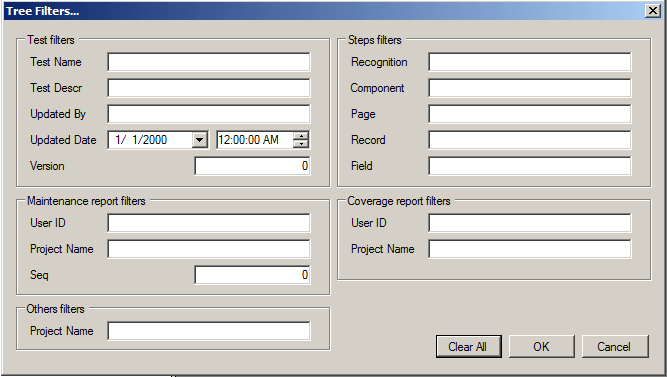
The filter criteria fields are grouped by these filter categories:
-
Test filters: Includes these test properties: Test Name, Test Description, Updated By, Update Date/Time, Version.
-
Step filters: Includes these step properties: Recognition, Component, Page, Record, Field.
-
Maintenance report filters: Includes tests flagged by the test maintenance report by these properties: UserID, Project Name, Seq (sequence).
-
Coverage report filters: Includes tests flagged by the test coverage report by these properties: UserID, Project Name.
-
Others filters: Includes test by their associated Application Designer Project Name.
Filters specifying a comparison against a text value use a starts with condition (when no wildcards are used) or a Like condition (when wildcards are used). For example, the following filter field entries would return the values listed:
| Filter Criteria | Returns | Does Not Return |
|---|---|---|
|
DAY |
DAY, DAYS, DAY_ONE |
MONDAY |
|
DAY% |
DAY, DAYS, DAY_ONE |
MONDAY |
|
%DAY |
DAY, MONDAY |
DAYS, DAY_ONE |
|
%DAY% |
DAY, DAYS, DAY_ONE, MONDAY |
The supported standard wildcard characters are:
| Wildcard | Search Action |
|---|---|
|
% (percent symbol) |
Match one or more characters. |
|
_ (underscore) |
Match any single character. |
|
\ (backslash) |
Escape character; do not treat the next character as a wildcard. |
Filters specifying a comparison against a Date/Time, Version, or Seq (sequence) use a greater than or equal to condition.
When multiple filters are specified, the filter clauses are all conjoined with ANDs (rather than ORs).