Finding and Replacing Test Step Data
Click the Find icon on the Mass Update toolbar to open the Find and Replace dialog box. Two tabs are available:
| Term | Definition |
|---|---|
|
Find |
Select the Find tab to find test step data. |
|
Replace |
Select the Replace tab to find and replace test step data. |
Finding Test Step Data
To find test step data:
-
Click the Find icon on the Mass Update toolbar.
The Find and Replace dialog box appears, with the Find tab active.
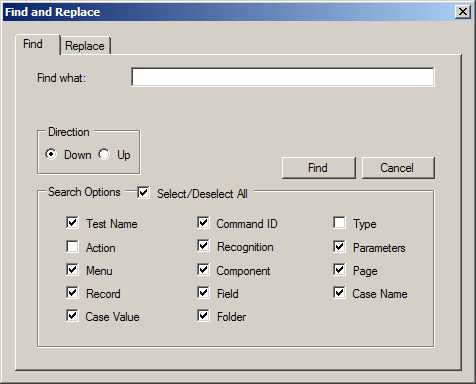
This example illustrates the fields and controls on the Find and Replace Dialog Box: Find tab.
-
In the Search Options group box, select the test step fields to include in the search.
-
In the Find what edit box, specify the search value.
For text fields, enter a search string; wildcards are supported.
For Action or Type, select a value from the list.
-
To specify the search direction, select Down or Up; the default is Down.
-
Click Find to find the next match.
Review each step and make any modifications needed.
-
Continue to click Find to review all the matching test steps.
A message appears when there are no more matches. Click OK, then click Cancel to exit the Find dialog box.
-
Click the Save icon on the Mass Update toolbar to save your changes.
Replacing Test Step Data
To replace test step data:
-
Click the Find icon on the Mass Update toolbar.
The Find and Replace dialog box appears, with the Find tab active.
-
Click the Replace tab to access the Replace dialog.
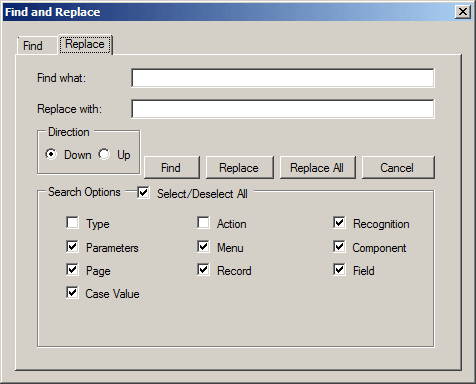
This example illustrates the fields and controls on the Find and Replace Dialog Box: Replace tab.
-
In the Search Options group box, select the test step fields to include in the search.
-
In the Find what edit box, specify the search value.
For text fields, enter a search string; wildcards are supported.
For Action or Type, select a value from the list.
-
Enter the replacement value in Replace with.
For text fields, enter the text string, for Action or Type, select a value from the list.
-
To specify the search direction, select Down or Up; the default is Down.
-
To replace all occurrences, without individually reviewing each match, click Replace All.
A message box appears indicating the number of replacements made. Click OK, then click Cancel to close the Find and Replace dialog box.
-
To review each match, click Find.
Either click Find to move to the next match without making any changes, or click Replace then Find to change the value and move to the next match.
Continue to click Find or Replace, as appropriate, to review all the remaining matching test steps.
A message appears when there are no more matches. Click OK, then click Cancel to exit the Find dialog box.
-
Click the Save icon on the Mass Update toolbar to save your changes.