Using the Mass Update Page
To access the Mass Update page, select .
This example illustrates the fields and controls on the Mass Update page.
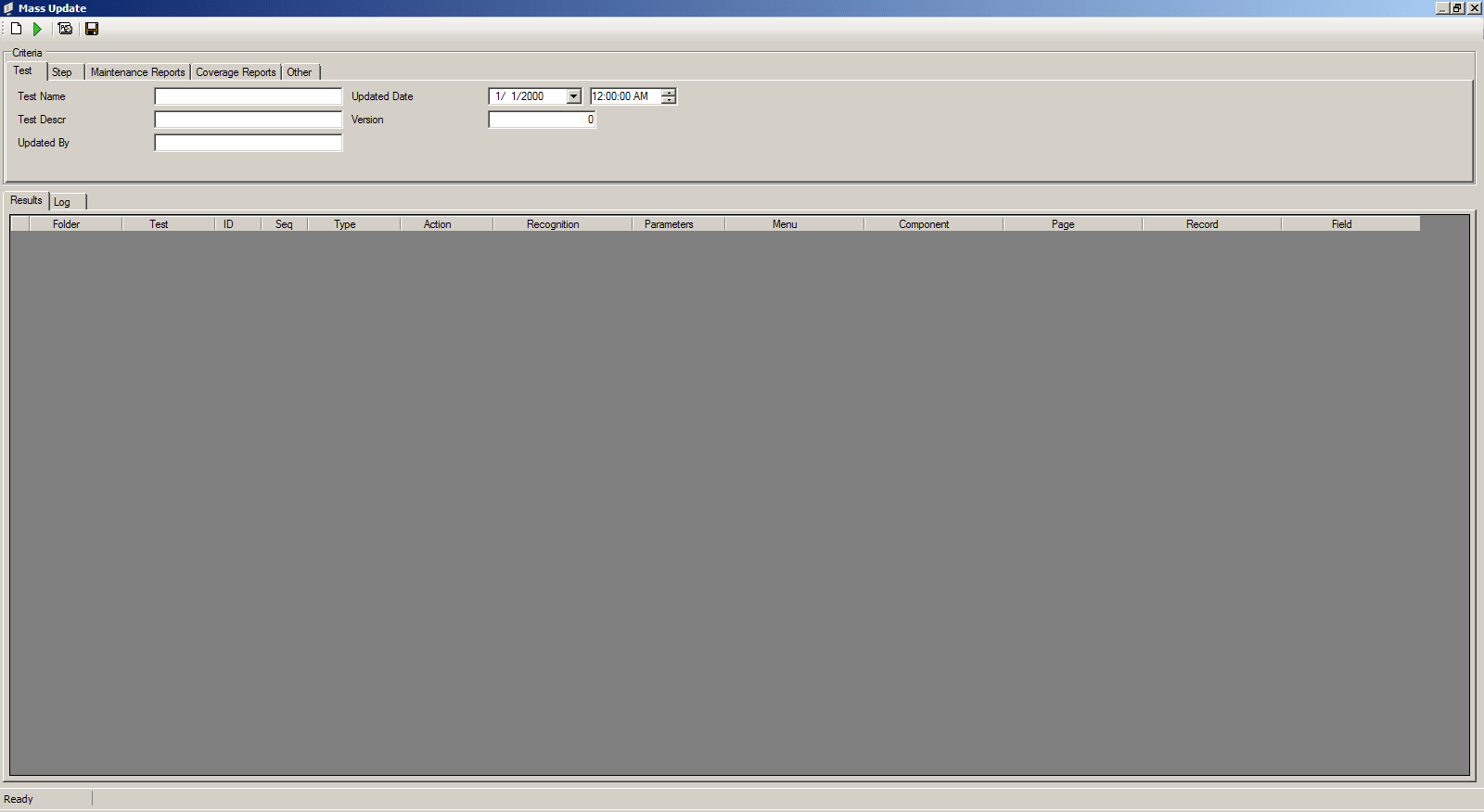
When you first open the Mass Update page, the Results grid is empty; no test records appear in the grid.
When you use the mass update tool, you define and apply a filter to retrieve tests that match specific criteria, returning the results in a grid format similar to the Test editor, but including steps for multiple tests. The grid includes two additional columns: Folder and Test so you can identify which test the steps are from. Once the grid is populated, you can use a find/replace dialog box to search for specific test step field values, modify the steps, and save your changes.
Mass Update Toolbar
The Mass Update Toolbar includes the following icons:
| Term | Definition |
|---|---|
|
|
Click to clear all criteria fields. |
|
|
Click to apply the filter and populate the grid with the matching test steps. |
|
|
Click to open the Find and Replace dialog box. |
|
|
Click to save all modified test steps. |


Mass Update – Criteria Group Box
Use the Criteria group box to define the filter criteria. When you open the Mass Update window, if filters for the PTF Explorer Tree have been defined, they are included automatically, but you can change the filter criteria as needed; the same filter fields are used in Mass Update and the PTF Explorer Tree. For best performance, specify more criteria to reduce the number of test steps that are retrieved.
The criteria types are grouped by the following tabs: Test, Step, Maintenance Reports, Coverage Reports, Other. Click each tab to define the criteria fields for that group.
For details about the filter criteria fields, see Defining and Applying Filters.
To include test cases, select the Other tab and check the Include Test Cases check box.
Mass Update – Results Grid
Use the Results grid as a worksheet area for retrieving and modifying test steps. Initially, this grid is empty. To populate the grid, define the filter criteria, then click the Retrieve icon. A status of Processing... appears in the status bar during retrieval. Once processing is complete, the status bar states the number of records retrieved.
This example illustrates the Results grid after applying the filter.
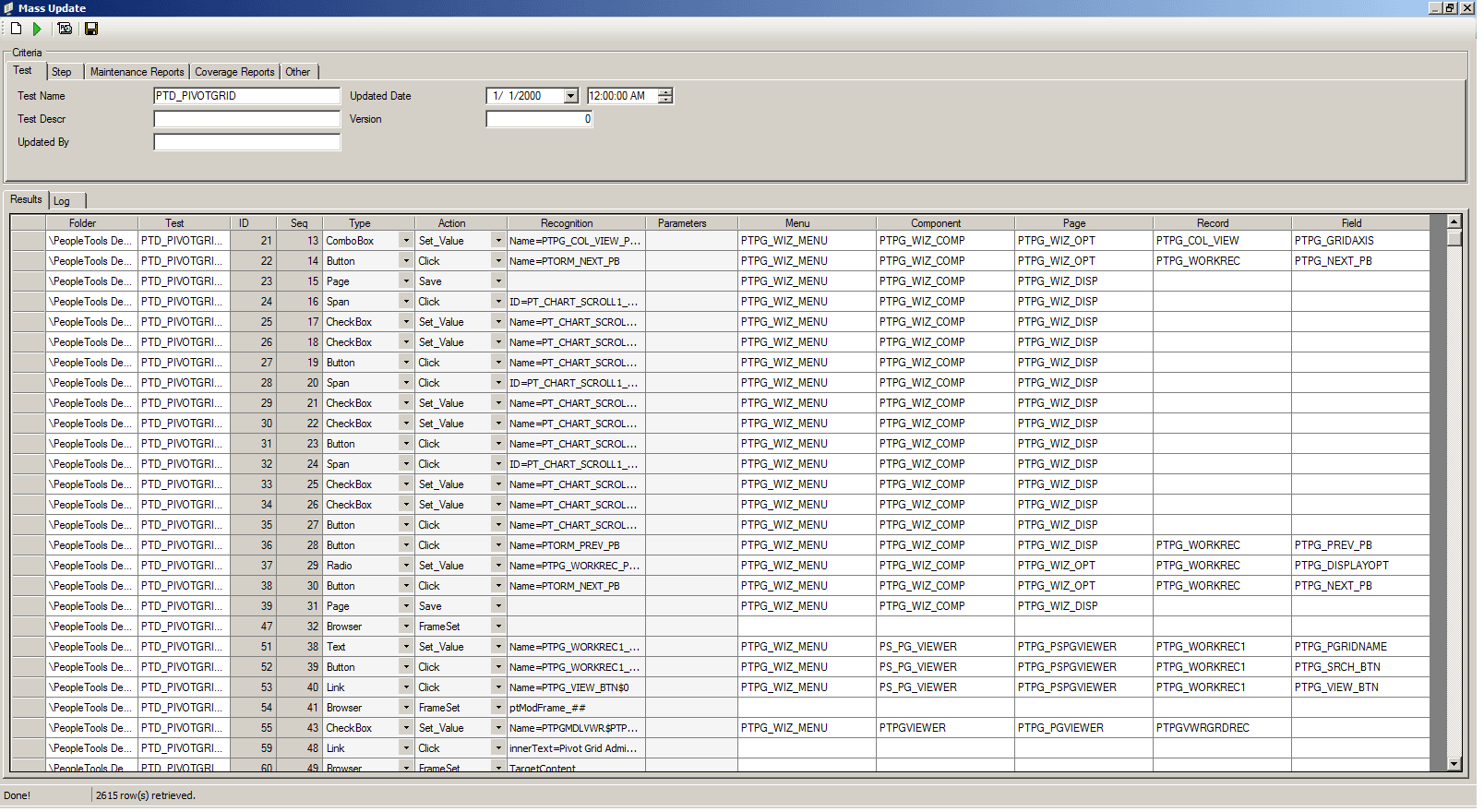
The grid contains the same fields as the Test Editor, with two additional columns: Folder, and Test so you can identify which test the steps are from.
| Term | Definition |
|---|---|
|
Folder |
Lists the folder hierarchy of the test the step belongs to. |
|
Test |
Lists the name of the test that contains the step. |
For information about the test step fields, see Test Step Fields.
Mass Update – Log Grid
The Log grid displays a log of mass update activity.