Inserting Action Steps
On the PIA page, you can insert test steps that provide logic constructs, manage scroll actions, and add variables and logs.
To insert test steps:
-
Right-click on the PeopleSoft Application page.
-
Select PTF Recorder, Insert Step, then insert the required step.
This list describes the options for test steps:
| Field or Control | Description |
|---|---|
|
Add Log |
Adds a Log step. You are prompted to select a Log action and enter text for the Message and Details. |
|
Add Variable |
Adds a Variable.Set_Value step. You are prompted for Variable Name and Value. User-defined variables and PTF test variables appear in the <Select Variable> drop down list. See Variable, System Variables. |
|
Compare PDF |
It automatically compares a generated PDF against a base PDF and generates a log to show the content difference. For details, review the subsequent Compare PDF section. |
|
End-If |
Adds a Conditional.End_If step. |
|
If-Then |
Adds a Conditional If_Then construct. You are prompted for an expression, such as &Exists=True. The Recorder inserts a Conditional.If_Then step. Record additional steps, then select End-If to add a Conditional.End_If step. See Conditional. |
|
Scroll Action |
Adds a Scroll.Action step. You are prompted to enter a Scroll ID, return variable, and action. Click the Confirm icon. |
|
Scroll Reset |
Select to delete all rows with the specified scroll ID |
Compare PDF
Select the Compare PDF step from Insert Actions, and specify the base PDF file path and applicable compare options. After the comparison process is complete, PTF removes the base PDF file from local storage.
When you run the process, PTF uploads the base PDF file or reuses an existing uploaded file, as applicable. At runtime, PTF compares the base PDF against the target PDF.
The target PDF is the output of a previous Process Run step. This PDF is downloaded either using a File.Download or Link.SaveTargetAs step.
Therefore, to run a Compare PDF action it is mandatory to first have a Process Run step followed by either a File.Download or Link.SaveTargetAs step.
Based on the comparison result, PTF updates the step run status in the test log.
This example shows the Compare PDF options.
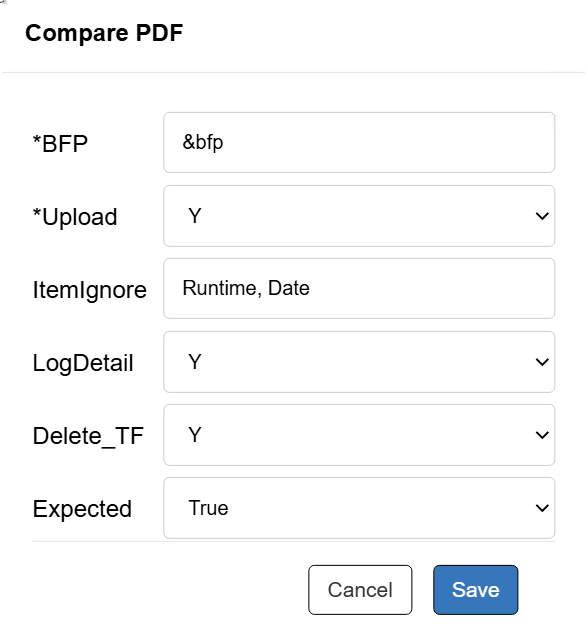
This table describes the options in Compare PDF:
Table 3-1 Compare PDF
| Options | Description |
|---|---|
|
BFP |
The base PDF file path. It is recommended to use a variable for the BFP to avoid specifying long or complex base PDF file paths directly in the step definition. You can set the variable and the associated value in the Add Variable option available in Insert Action Steps. For example, set the Variable Name as &fbp, and Value as C:\Users\SampleReports\ sampleReport1.pdf |
|
Upload |
Y (Yes) or N (No) options are provided. Select Y to upload the base file to database. Select N to skip uploading the base PDF file to the database if the file has already been uploaded previously. |
|
ItemIgnore |
Lists the items that need to be ignored during PDF compare. Use comma separated list. |
|
LogDetail |
Use this to specify the level of detail included in the PDF comparison log. Select Y to log detailed content differences. Select N to log only summary or line-level difference information. If no value is specified, PTF uses the setting defined in Local Options. |
|
Delete_TF |
Use this to specify whether PTF deletes the target PDF file after the comparison process completes. The options are:
If no option is selected, PTF uses the setting defined in Local Options configuration. |
|
Expected |
Use this to define the expected outcome of the PDF comparison operation. Based on the comparison result and the specified value, PTF updates the run status in the test log. The options are:
If no option is selected, PTF logs step information when the compared PDF documents are identical and logs a warning when differences are found. |