Adding Actions
You can add actions directly on the page elements on the PeopleSoft Application pages.
You can select and add an action on a page element from the Add Action options.
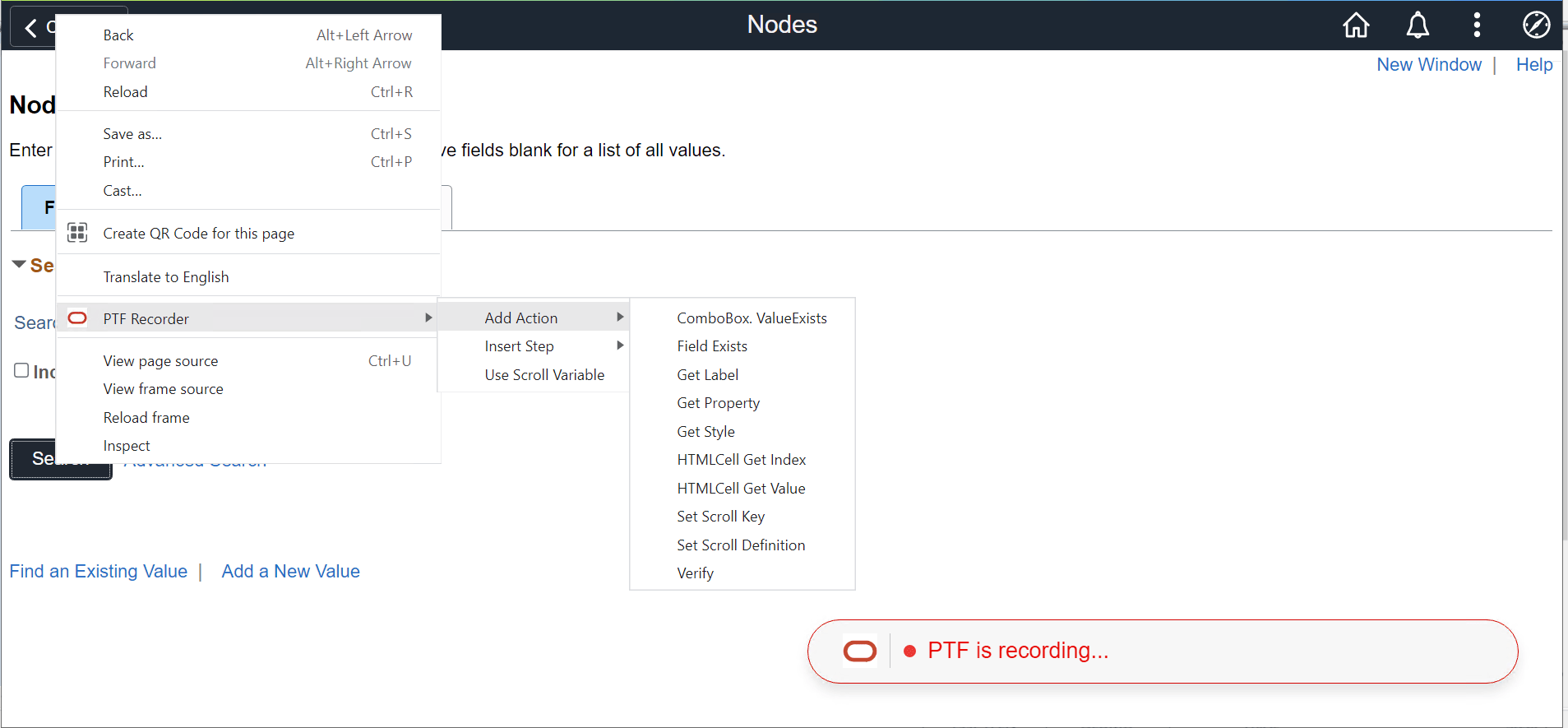
To add actions:
-
Right-click on the page element.
-
Select PTF Recorder, Add Action, then select an action.
This list describes the action options:
| Field or Control | Description |
|---|---|
|
ComboBox.ValueExists |
Adds a ComboBox.ValueExists step. You are prompted to select the value, and the variable to store the return value, and to select an expected value. Valid values are True, False, or Ignore. |
|
Field Exists |
Adds an Exists step. You are prompted to enter a variable name or select an existing variable and to select an expected value. Valid values are True, False, or Ignore. See Exists. |
|
Get Label |
Adds a GetLabel step. You are prompted for the return variable that will contain the label. See GetLabel |
|
Get Property |
Adds a GetProperty step. You are prompted with a list of properties for the selected page element. Enter a variable name or select an existing variable name for one or more properties. The recorder adds a GetProperty step for each property you identify. See Get_Property. |
|
Get Style |
Adds a GetStyle step. You are prompted with a list of style definitions for the selected page element. Enter a variable name or select an existing variable name for one or more style definitions. The recorder adds a GetStyle step for each style you identify. |
|
HTMLCell Get Index |
Returns the index value for an HTML table cell. You are prompted for the return variable that will contain the HTML index. See CellGetIndex |
|
HTMLCell Get Value |
Returns the value for an HTML table cell. You are prompted for the return variable that will contain the HTML cell value. See CellGetValue |
|
Set Scroll Key |
Adds a Scroll.Key_Set step. Enter a Scroll ID in the Step Modification area and click the Confirm icon. |
|
Set Scroll Definition |
The Step:Scroll Definition dialog box appears where you can select the definition type and other details. See Scroll. |
|
Verify |
Adds a Verify step. The step is automatically populated with the object ID and value of the field. See Verify. |
Note:
Chrome and Microsoft Edge-based PTF recorders allow recording of right-click, save as action on a link.
For details on SaveTargetAs action, see SaveTargetAs