PTF Recorder
PTF client launches the PTF Recorder as a browser application where you can open the PeopleSoft application page and start recording.
To access the PTF Recorder, select Test, Open Test Recorder or click the Show Test Recorder icon (red icon).
This example illustrates the tools and controls on the PTF Recorder. You can find definitions for the tools and controls later on in this section.
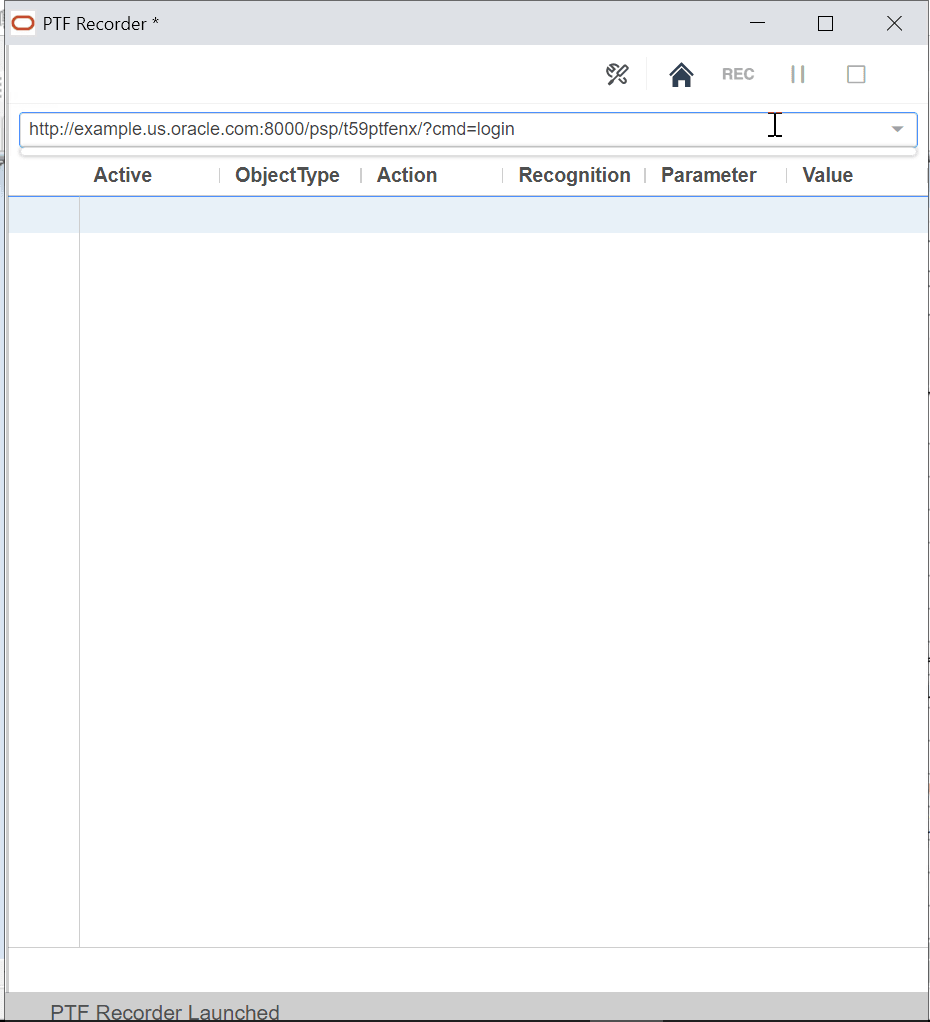
The recorder opens with a 'PTF Recorder Launched' message at the bottom of the window.
You can control the recording actions with the tools available on the PTF Recorder.
This list describes the recording action tools.
| Field or Control | Description |
|---|---|
 |
Configure the recorder settings. |
 |
Launch a PeopleSoft application in Chrome or Microsoft Edge browser window using the URL configured in the run option and hook the browser instance to the recorder. |
 |
Start or resume recording. When you begin recording, the recorder adds or inserts steps following the current step. When you resume recording, after pausing, you are prompted to choose from these options:
Note: These options appear only if the current selected step is not the last recorded step. If the selected step is the last recorded step, then the recorder resumes without these options. |
 |
Pause recording. |
 |
Stop recording to create steps in the test for each recorded action. |
Re-Hooking an Existing Page
After recording few steps in a PIA page, you may want to record again from the point where you stopped or you may want to navigate to a certain page and then record from that page.
When user stops recording, the recorded steps gets processed and is available in the PTF client, without closing the PTF recorder and the PIA page.
You can record new steps by re-hooking the already opened PIA page, provided that the PIA page is still active, or the base URL page depending on the option selected.
To re-hook to an existing PIA page, ensure that you do not manually close the PTF Recorder and the PIA page.
This example shows the option to re-hook an existing page
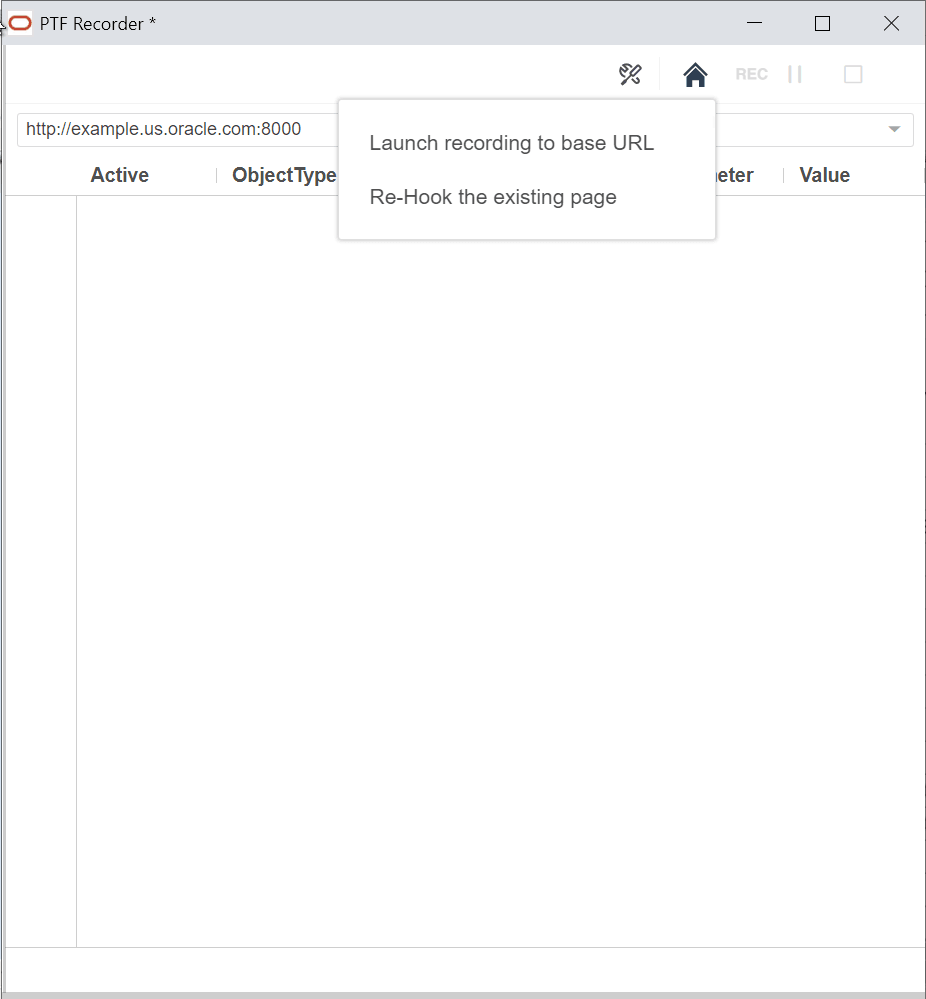
On the PTF Recorder, click the Start web client icon, and select the Re-Hook the existing page option.
When you re-hook, the browser becomes active and you can start recording. The recorded step appends to the unsaved test script.
Note:
Re-hook works on the most recently opened or used PIA page instance by the PTF Recorder.