Recording a Test
To record a test:
-
Create a new test or open an existing test.
-
If you are recording within an existing test, highlight a test step. The system inserts the steps in the new recording following the highlighted step. If you are recording a new test, recording typically begins at Step 2. By default, Step 1 is Browser.Start, or Browser.Start_Login, depending on your configuration options.
-
With a test open, select Test, Open Test Recorder or click the Show Test Recorder button in the toolbar.
-
PTF client launches the PTF Recorder as a browser application where you can open the PeopleSoft application page and start recording.
Note:
To record a test, use the PTF Recorder with Chrome and Microsoft Edge browsers.
For instructions, see Using the PTF Recorder with Chrome and Microsoft Edge
-
Hook a browser, that is, associate a PeopleSoft application browser with the test.
To hook, click the Start Web Client icon on the PTF Recorder browser application.
-
Click the Start Recording icon in the PTF Recorder browser application.
-
Perform the test steps in the PeopleSoft application.
-
As needed, add actions directly on the page elements on the PeopleSoft Application pages.
-
Modify steps by pausing the session and editing the step in the PTF Recorder. The Edit Selected Step window appears when you highlight a recorded step to edit. The editable parameters of the selected step are displayed in this window.
-
Click the Stop Recording icon in the PTF Recorder browser application to end the recording and write the steps to the test.
-
Save the test.
Inspect Page Elements
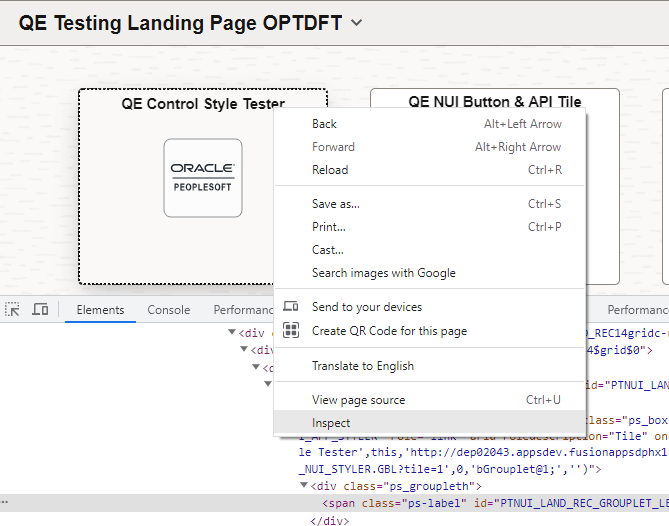
While recording a test script, use the browser's inbuilt element inspector to inspect the page elements such as types, IDs, properties, and styles.
This example illustrates the fields and controls associated with the element Inspector.