Defining PTF Configuration Options
Use the Define Configuration Options page (PSPTTSTCONFIG) to:
-
Define record and runtime options.
-
Configure external command processing.
Navigation:
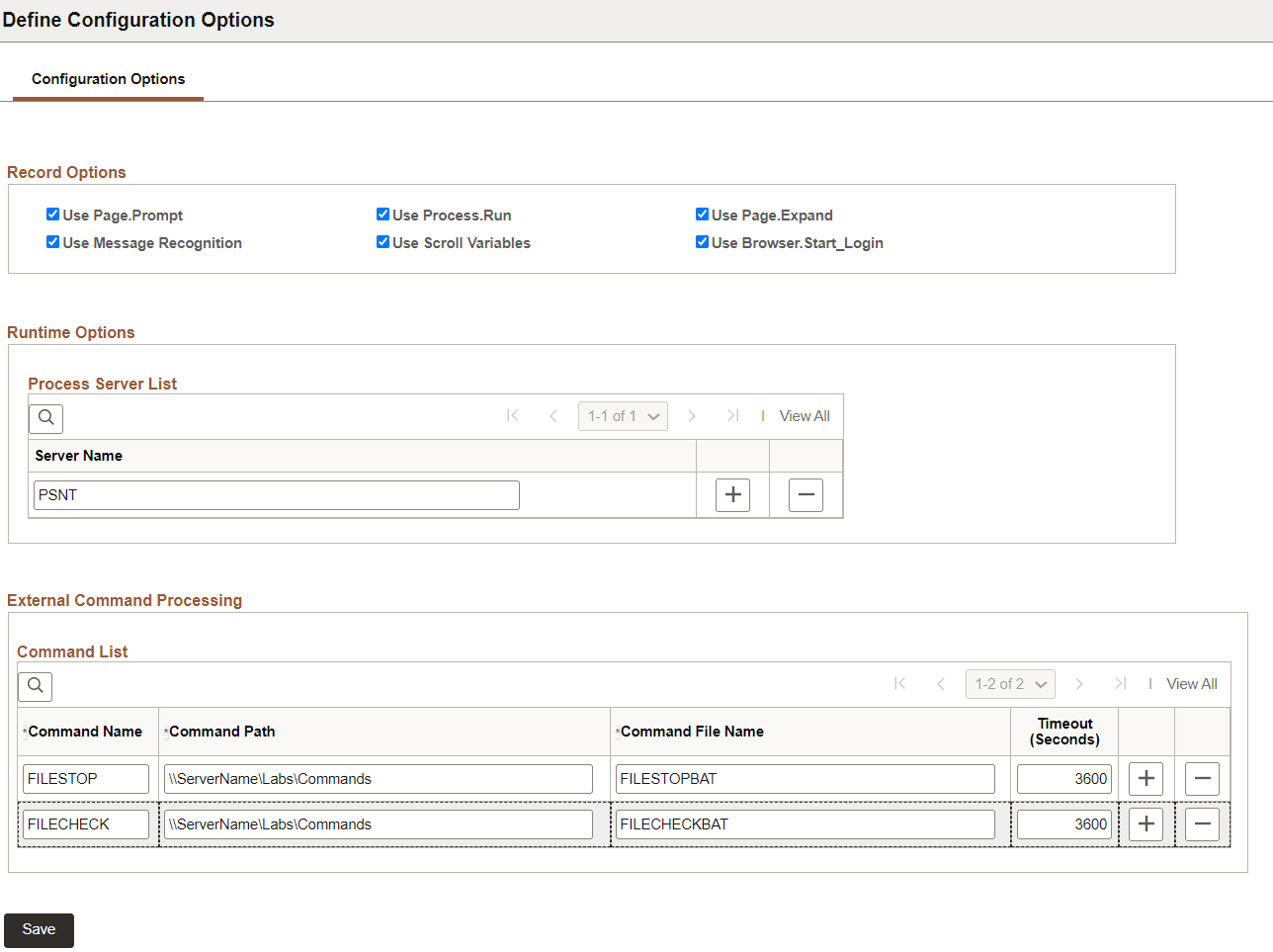
This example illustrates the fields and controls on the Define Configuration Options Page.
Record Options
| Field or Control | Description |
|---|---|
|
Use Page Prompt |
Select to use Page Prompt and PromptOK steps during recording in place of menu navigation. The Use Page Prompt option is also available on the PTF Test Recorder toolbar. The option selected here is the default for all users in this environment. The option selected on the PTF Test Recorder toolbar overrides this selection for that recording session. See Page. |
|
Use Message Recognition |
Select to automatically create entries for the Message Recognition feature during recording. The Use Message Recognition option is also available on the PTF Test Recorder toolbar. The option selected here is the default for all users in this environment. The option selected on the PTF Test Recorder toolbar overrides this selection for that recording session. |
|
Use Process Run |
Select to use Process Run steps during recording in place of specific object actions. The Use Process Run option is also available on the PTF Recorder toolbar. The option selected here is the default for all users in this environment. The option selected on the PTF Test Recorder toolbar overrides this selection for that recording session. When this option is selected, PTF will recognize when a user accesses a run page and will populate the Process.Run parameters with the process information. All actions in the run page or process monitor page will be ignored, because those actions will be handled by the Run.Process during runtime. |
|
Use Scroll Variables |
Select to enable selection of scroll variables during recording. The Use Scroll Variables option is also available on the PTF Test Recorder toolbar. The option selected here is the default for all users in this environment. The option selected on the PTF Test Recorder toolbar overrides this selection for that recording session. When this option is selected, a drop-down list box containing valid scroll variables appears in the PTF Test Recorder tool bar. While recording, when the user selects any available variable from the Variable list, in subsequent recording actions, the PTF Recorder appends the variable to the name/ID/comment recognition string in the test. |
|
Use Page Expand |
Select to add a Page.Expand step type if the user expands a section of a page during recording. The Use Page Expand option is also available on the PTF Test Recorder toolbar. The option selected here is the default for all users in this environment. The option selected on the PTF Test Recorder toolbar overrides this selection for that recording session. If this option is selected, when a user expands a page section, two steps are inserted:
When this option is not selected, when a user expands a page section, a step for only the specific user action is inserted. |
|
Use Browser.Start_Login |
Select this option to set the first step in a test to Browser.Start_Login. When this option is selected, the Ignore Login Steps option on the PTF Test Recorder tool bar is selected by default. When this option is not selected, the first step in a test is set to Browser.Start, and the Ignore Login Steps option on the PTF Test Recorder tool bar is not selected, so any immediately subsequent recorded login steps are active. The option selected here is the default for all users in this environment. |
Run Options
| Field or Control | Description |
|---|---|
|
Process Server List |
Add process server names to the list that can be selected in Runtime Options. |
External Command Processing
Use this section to define the command line programs available to PTF users within any given PTF environment. When the step/action Command.Exec is defined in the test step, PTF will use the information supplied to run the command.
Note:
Automation engineers may develop many executable utilities that assist in automating functional test cases. In order to limit the scope of command line programs available to PTF users within any given PTF environment, the command line program must be defined in the PeopleSoft database.
| Field or Control | Description |
|---|---|
|
Command Name |
Enter the name to be used in PTF for the command line program. The command name will be all caps. |
|
Command Path |
Enter the path where the command line program is located. Note: The path to the defined external command and the executable file must be located on a host accessible to the PTF client used to run the Command. |
|
Command File Name |
Enter the name of the command line file. |
|
Timeout |
Enter the time in seconds before a command will time out. |
See Command.