Configuring Runtime Options in PTF Client
You use runtime options to configure settings for the PeopleSoft applications that you test with PTF. Runtime options are stored as part of the metadata for a PTF environment and are available to all users of that environment. Only a PTF administrator (a user with the PTF Administrator role) is able to insert, delete, or modify runtime options. You can configure runtime options either in the PTF client, or by using the Define Runtime Options component in the PeopleSoft Internet Architecture.
This section describes how to configure runtime options in the PTF Client. For information about defining runtime options in PIA, see Configuring Runtime Options in PeopleSoft Internet Architecture
Note:
Because test assets are PeopleTools-managed objects, we strongly recommend that you run tests only against the database on which they are stored. As part of the PTF maintenance process, PTF synchronizes test definitions with application metadata definitions. If tests are run against a different application database, you may encounter problems when an application is customized or upgraded. A PTF administrator can limit runtime options to environments running against the same database where test assets are stored.
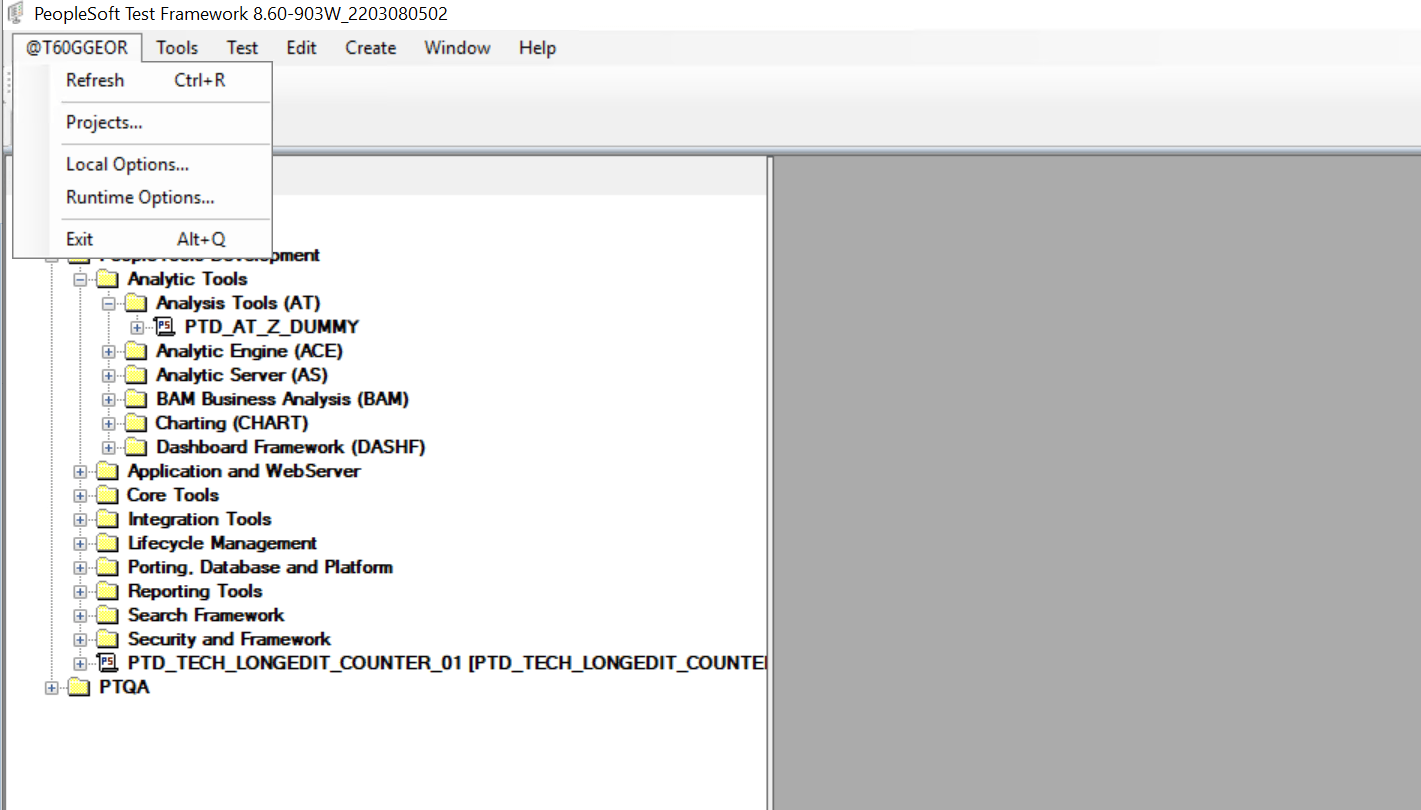
To establish runtime options in the PTF client, access the Runtime Options dialog (select <PTF menu>, Runtime Options). The PTF menu is labeled with the name of the current PTF environment, preceded by an @ character, such as @QEDMO. You can also access the Runtime Options dialog box by clicking the runtime options link in the lower right corner of the PTF application window. The runtime options link is labeled with the name of the default runtime option. In the following example, the runtime options link is QA.
This example shows how to access the Runtime Options dialog in the PTF Client using the PTF menu.
The currently defined runtime options appear on the left pane of the Runtime Options dialog. The settings for the selected runtime option appear in the right pane.
The following toolbar buttons are available:
| Field or Control | Description |
|---|---|
|
|
Click to add a new runtime option. |
|
|
Click to remove an runtime option from the list. |
|
|
Click to export runtime option on a PTF environment to a data file. |
|
|
Click to import runtime options from a data file to a PTF environment. |
|
|
Click to save changes and close the dialog box. |
|
|
Click to close the dialog box without saving changes. |


Default Runtime Option
When you click the Accept button in the Runtime Options dialog box, PTF stores the name of the selected runtime option and uses it, by default, in subsequent test recordings and runtime. A link in the lower right corner of the PTF application window displays the name of the default runtime option. You can click the link to open the Runtime Options dialog box.
Overriding the Default Runtime Option
Use a Runtime step with a Set_Options action in a shell test to override the default runtime option.
See Runtime.