Options Tab
Use the Options tab to define the application settings and log output options to use during PTF test runtime.
This example illustrates the fields and controls on the Runtime Options dialog – Options tab. You can find definitions for the fields and controls later on this page.
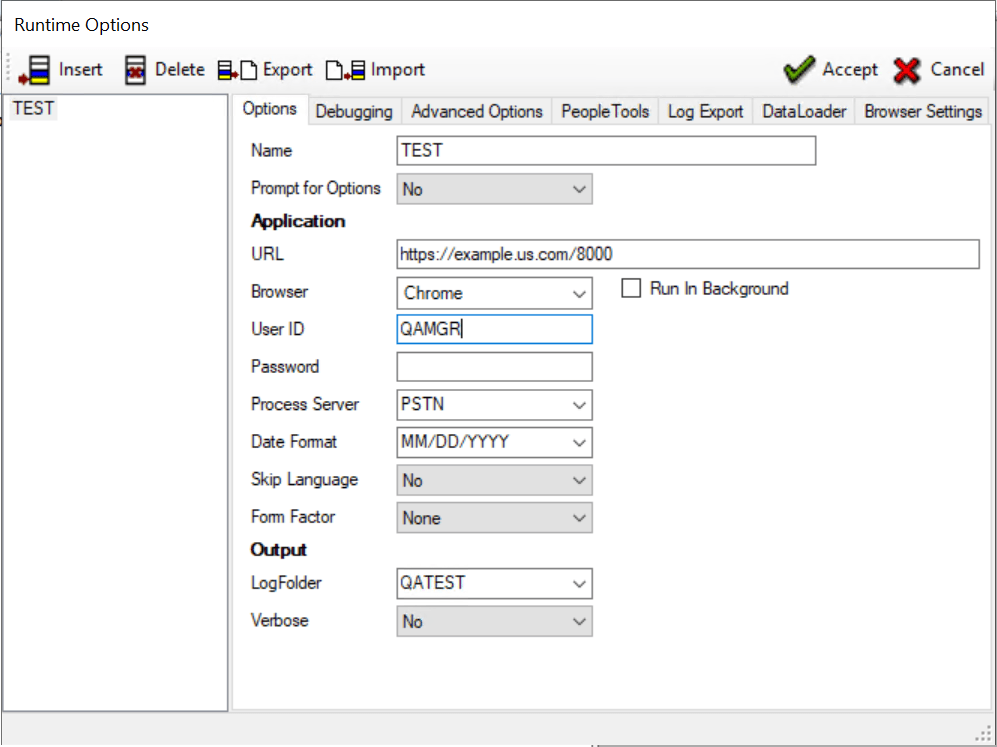
The following fields are on the Options tab:
| Term | Definition |
|---|---|
|
Name |
Enter a name for this runtime option. |
|
Prompt for Options |
Specify whether the Runtime Options dialog appears when a user runs a test. |
|
URL |
Enter the URL of the login page for the PeopleSoft application. PeopleSoft Test Framework uses this URL for the Browser.Start_Login step type/action when running tests and when you click the Home icon (to start the web client and go to the default URL) in the test recorder. If the URL that is specified is not a standard PeopleSoft login page, PeopleSoft Test Framework will try to determine the UserID and Password fields, and set their values accordingly. If that fails, PeopleSoft Test Framework will log a fatal error message. In that case you should use Browser.Start and the explicit steps required to log in, instead of using Browser.Start_Login. |
|
Browser |
Specify a browser to record or playback any test script. The options are Chrome, Microsoft Edge, and Firefox. For test playback, you can use all these options. For recording test script, PTF is designed in such a way that it launches:
Chrome is the default value for browser. If you continue with the default value, the recording and test playback will happen in Chrome. |
|
Run In Background |
This option is enabled for Chrome and Microsoft Edge browsers to run it in headless mode. Select this option to run the browser window in the background so that the log viewer of PTF client is in the foreground for the user to monitor the test status. You can also set this option through command line. |
|
User ID |
Enter a valid user ID for the application database. |
|
Password |
Enter the login password for the user. |
|
Process Server |
Select a process server from the drop-down list. This list is populated by the Process Server List field in the Configuration Options page. |
|
Date Format |
Select a date format. |
|
Skip Language |
Select Yes to bypass the language selection on the PeopleSoft application login page. |
|
Form Factor |
Select the form factor size to use when launching the application. At test runtime, the form size that you specify is selected on the login page, and a new browser instance will open using that size. The test will continue to execute in the new browser instance. |
|
LogFolder |
Select or enter the folder name to which test logs will be written. If the folder does not exist it will be created. |
|
Verbose |
Specify the log format. Select Yes to log a detail line for each step that is executed in the test. Select No to log only the test status (Pass or Fail) at the test level and to log a detail line for failed steps. |