Step 2 of 2: Generate Report
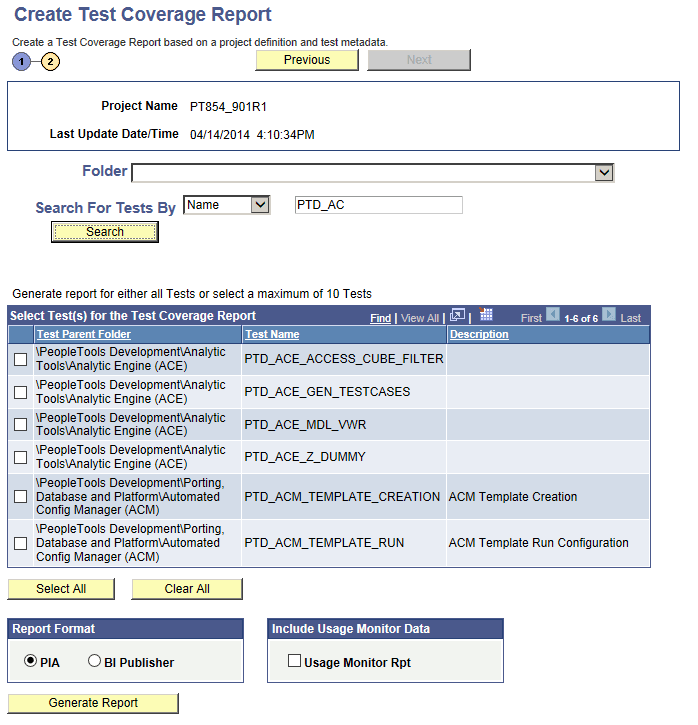
This example shows step 2 of 2:
This example illustrates the fields and controls on the Create Test Coverage Report Wizard: Step 2 of 2.
To generate the report:
-
Select one or more tests in the Select Test(s) for the Test Coverage Report grid to use for the report.
Use the Folder and Search for Tests By fields along with the Search button to filter the list of tests that are available to select for the report:
-
Select a value in the Folder list to specify the PTF Explorer Tree level to include. To include tests from all folders, leave this field blank.
-
To include only tests that match a test name or description, select Name or Desc from the Search for Tests By list, then enter the search string in the adjacent edit box.
Click Search to populate the Select Test(s) for the Test Coverage Report grid with the tests that match the criteria specified.
-
-
Select the report format.
-
Click Generate Report to create the report.
The following fields are on the Create Test Coverage Report Wizard: Step 2 of 2 page:
| Field or Control | Description |
|---|---|
|
Folder |
To limit the report to tests from a specific folder, select the level of the PTF Explorer Tree to include. To include tests from all folders, leave this field blank. |
|
Search for Tests By |
Select Name to search for reports by test name, or Desc to search for reports by their description. Enter the search string in the adjacent edit box. To retrieve all reports, leave the edit box blank. |
|
Search |
Click to populate the Select Test(s) for Test Coverage Report grid with the tests that match the criteria specified. |
|
Select All |
Click to select all tests that are listed in the Select Test(s) for Test Coverage Report grid. |
|
Clear All |
Click to deselect all tests that are listed in the Select Test(s) for Test Coverage Report grid. |
|
Report Format |
Select the report output format. Options are:
|
|
Usage Monitor Rpt |
Select to include Usage Monitor data in a test coverage report. You need to generate Usage Monitor data while creating your tests. |
|
Generate Report |
Click to create the report. |