Step 4 of 4: Generate Report
This example shows Step 4 of 4:
This example illustrates the fields and controls on the Create Test Maintenance Report Wizard: Step 4 of 4.
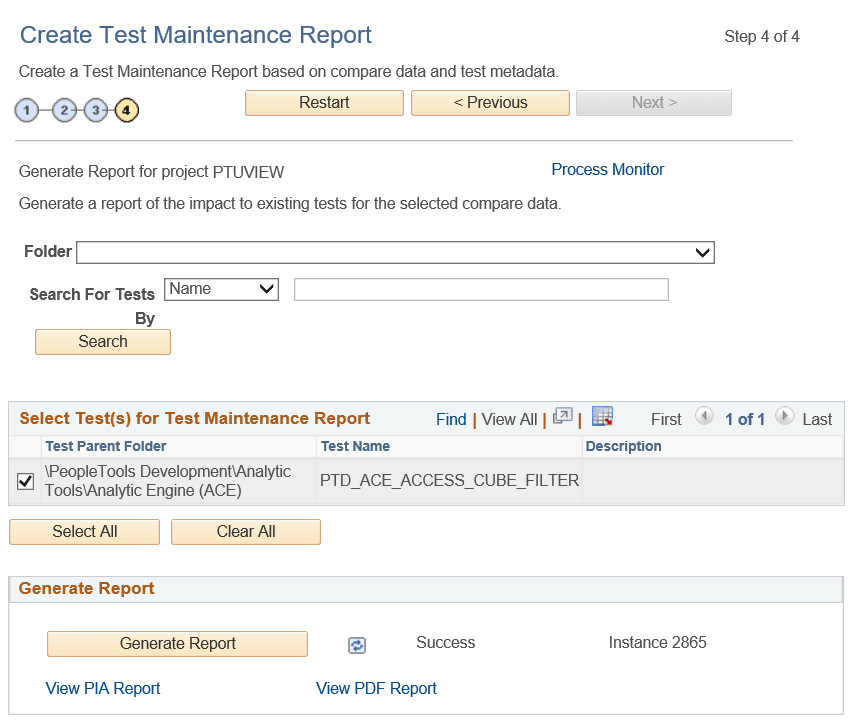
For a given change project you will use this page to generate multiple reports as changes are made to the PTF test metadata. As you make changes to tests based on the results of this report, rerun the report to verify that the issues were corrected. You can run this report repeatedly as you make changes to tests without having to redo steps 1 through 3 of the Create Test Maintenance Report wizard.
To generate a report:
-
Select one or more tests in the Select Test(s) for Test Maintenance Report grid to use for the report.
Use the Folder and Search for Tests By fields along with the Search button to filter the list of tests that are available to select for the report:
-
Select a value in the Folder list to specify the PTF Explorer Tree level to include. To include test from all folders, leave this field blank.
-
To include only tests that match a test name or description, select Name or Desc from the Search for Tests By list, then enter the search string in the adjacent edit box.
Click Search to populate the Select Test(s) for Test Maintenance Report grid with the tests that match the criteria specified.
-
-
Select the report format.
-
Click Generate Report to create the report.
This will launch the Application Engine program PSPTMAINTRPT in Process Scheduler.
The following fields are on the Create Test Maintenance Report Wizard: Step 4 of 4 page:
| Field or Control | Description |
|---|---|
|
Folder |
To limit the report to tests from a specific folder, select the level of the PTF Explorer Tree to include. To include tests from all folders, leave this field blank. |
|
Search for Tests By |
Select Name to search for reports by test name, or Desc to search for reports by their description. Enter the search string in the adjacent edit box. To retrieve all reports, leave the edit box blank. |
|
Search |
Click to populate the Select Test(s) for Test Maintenance Report grid with the tests that match the criteria specified. |
|
Select All |
Click to select all tests that are listed in the Select Test(s) for Test Maintenance Report grid. |
|
Clear All |
Click to deselect all tests that are listed in the Select Test(s) for Test Maintenance Report grid. |
|
Generate Report |
Click to create the report. |
|
Process Monitor |
Click to check the progress of the Application Engine program PSPTMAINTRPT. Note: The run details, such as run status and process instance, are displayed on the Wizard after you click Generate Report. |
|
View PIA Report |
Click to view the report in the application browser. This link is enabled after the report is created. |
|
View PDF Report |
Click to view a PDF report. This link is enabled after the report is created. |
Running a Test Report from PTF Client
As you modify a test based on the results of a maintenance report, you can validate the test by running a test report from the PTF client. The report is generated for a single test, using analyses generated in Step 2 of the Test Maintenance Wizard.
-
In PTF Explorer, right-click on a test.
-
From the context menu, select Validate Test.
-
The Validate Test – Analysis Project list dialog box appears.
-
Select an analysis from the list and click Open.
The test maintenance report opens in a new window in the PTF client.