Syntax Check
If the syntax or value in a test step is not correct, the test will produce an error when the test is executed. The Check Syntax option allows a user to validate the parameters provided in their steps either on save or on demand prior to the run.
Check Syntax will:
-
Display an error message for any invalid or missing required parameter values.
-
Display a error message for any invalid optional parameter values.
-
Display a warning message when the return value of a step has not been entered.
-
Display an error window listing all errors and warnings found in sequential order for a test.
Note:
There may be multiple errors in a single step.
-
Display an error when syntax is incorrect or missing, such as verifying that all Conditional.If steps are paired with Conditional.End_if steps.
Note:
Check syntax validates only active steps. Only syntax is validated, not data.
Check Syntax does not validate:
-
PTF functions.
-
System variables.
-
Reserved words.
-
Condition sign.
-
File and folder names.
-
Duplicated parameters.
-
Missing values.
-
Parameter that is not available for the action.
-
Missing parameter name.
Running On Demand Syntax Check
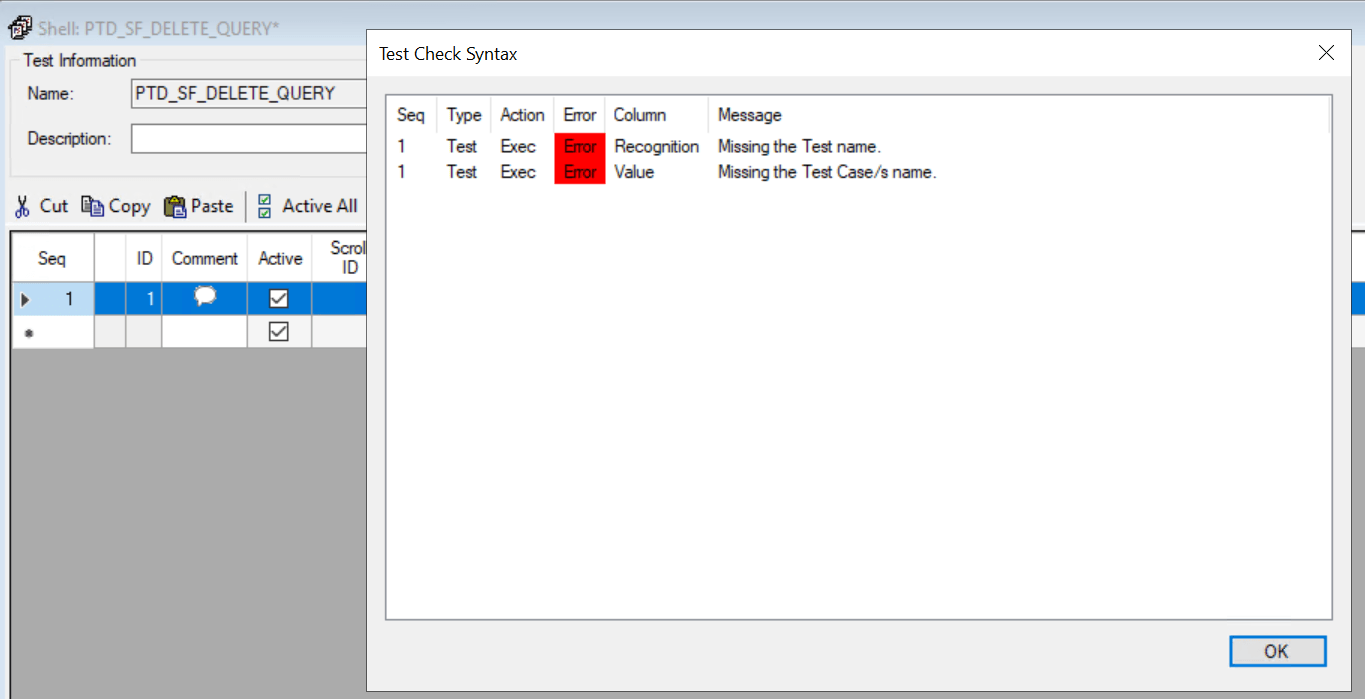
After you have edited your test, select Test, Check Syntax or click the Check Syntax icon. The errors and warnings will be displayed. When you click on the error or warning in the Test Check Syntax window, the step is highlighted in the test.
This example illustrates the check syntax dialog box with 2 errors.
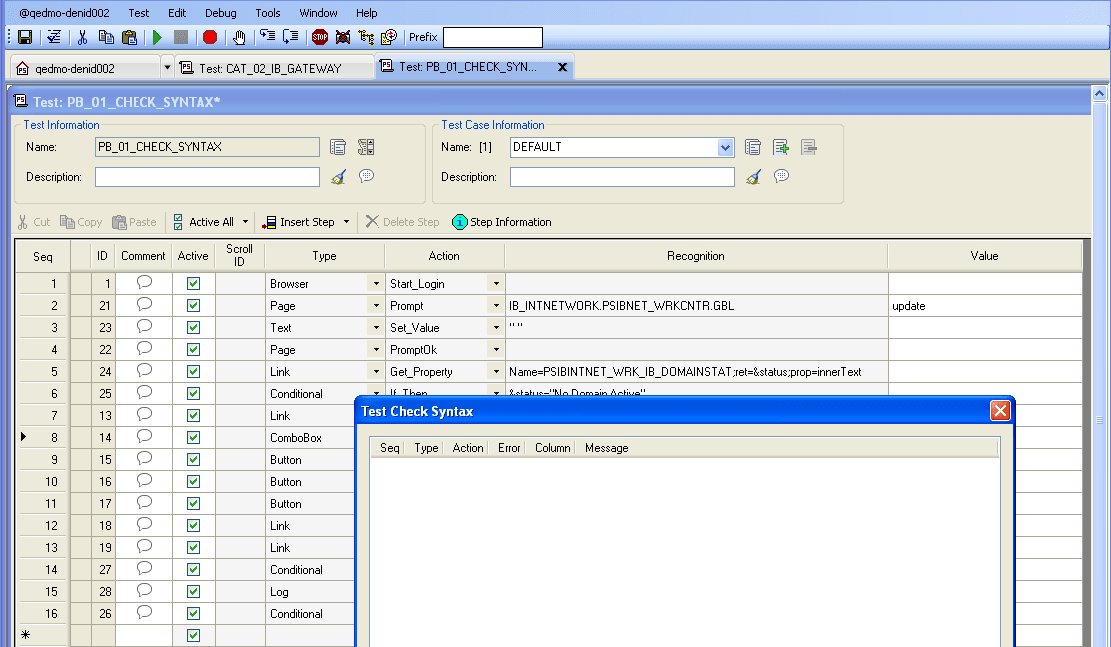
If the syntax check does not detect any errors or warning, the dialog box will not return any rows of data:
This example illustrates the check syntax dialog box with no errors.
Automatically Running Syntax Check on Save
To have Syntax Check run automatically every time you save a test:
-
In PTF Explorer, click on your environment name and select Local Options.
-
In the Auto-Check Syntax field select Yes and click OK.
-
When you save a test, you will be prompted to run the syntax check.