Importing PeopleSoft 8 Trees from an External File
Use the Tree Import page (RUN_TREEMOVER_IMP) to import trees using TreeMover.
Navigation:
Note:
PeopleSoft Tree Manager does not accept wildcard characters. To prevent creating a corrupted tree, the Tree Import utility checks for invalid tree node names.
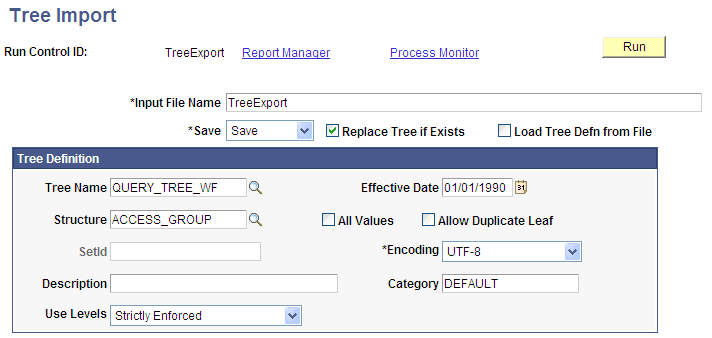
This example illustrates the fields and controls on the Tree Import page.
To import an existing PeopleSoft tree:
-
In the Tree Import page, enter the correct input file name.
Note:
When the PS_TREEBASEDIR environment variable is set, the flat file for the import process is located in %PS_TREEBASEDIR%\<USER>\InputFilename. You can override this and create another location using the Process Definition Override page.
-
Select a save method.
By default, you should use the Save option. However, if you think the tree might not pass all the PeopleSoft tree audits, then select the Save Draft option, which saves the tree in draft mode and functions just as it does in PeopleSoft Tree Manager.
-
If the tree already exists in your database, select the Replace Tree if Exists option.
Note:
If the tree already exists in your database and you do not select the Replace Tree if Exists option, the tree will not be imported.
-
Select the Load Tree Defn from File (load tree definition from file) option if the tree definition is contained in the input file and you want to load the tree with the same tree definition values.
Note:
In most cases, you want to load the tree definition from the file. If you select this option and the tree definition does not exist in the input file, then the load process fails.
-
Enter the basic tree information if you are not loading the tree definition from the input file.
If you are not loading the tree definition from the input file, then you are required to specify all the basic tree information on the run control page. These fields correspond to the same values that you’d have to enter if you were creating the tree using PeopleSoft Tree Manager. TreeMover skips the input record that contains the tree definition information and instead use the values that you enter.
You must load the tree definition from the file if you’re also loading the tree structure from the file. If you try to load the structure from the file, but have overridden the definition values on the page, then the process will not run completely.
TreeMover loads a new tree structure only if the structure doesn't already exist.
Note:
If your TreeMover data file contains user level data or user node data and you are changing the setID of your tree on import, the user data will retain the original setID. TreeMover import does not support the changing of user data setIDs.
-
Select the encoding option. The available options are ANSI and UTF-8.
-
Click the Run button to move the tree. This will import the flat file in the location %PS_TREEBASEDIR%\<USER>\InputFilename.
If PS_TREEBASEDIR is set as E:\buildArea\TREE_LOC and user is QEDMO, the file will be imported from E:\buildArea\TREE_LOC\QEDMO\ test_t01.
-
Verify the successful completion of the process by checking the run status of the process in the Process Monitor page.
If you receive either a run status of Warning or No Success, view the message log explanations for details and recommendations. You should also view the TreeMover log for more information.
Note:
You can also check the log file. If the process completed successfully, the log file states PeopleSoft TreeMover Completed Successfully.
If you’re loading a tree that contains detail values, then those detail values must exist in the target database before you load the tree. If they do not exist, then the tree import process fails.