Modifying Tree Definitions
Use the Tree Definition and Properties page (PSTREEDEFN) to edit tree properties for an existing tree, and to save a tree with a different name, effective date, and other properties.
Navigation:
-
Select Tree Manager, Tree Manager.
-
Search for an existing tree or create a new one.
-
Open a tree on the Tree Manager page and click the Save As link.
Alternatively, open a tree on the Tree Manager page and click the Tree Definition link.
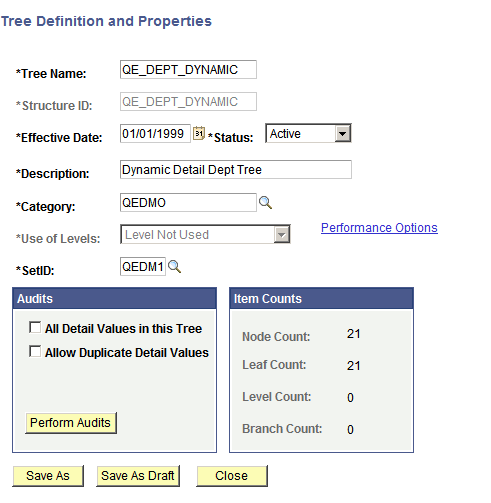
This example illustrates the fields and controls on the Tree Definition and Properties page.
To modify tree definitions:
-
In the Tree Definition and Properties page, enter a new description or select a new category for the tree.
-
In the Status drop-down list, select the status of the tree to be Active or Inactive.
An active tree can be used by other applications. An inactive tree cannot be used by the system.
-
In the Use of Levels field, select how levels in the tree are enforced.
The available options depend on the type of tree that you are modifying. If levels are not defined in the selected tree structure, this field is unavailable and the value Level Not Used is displayed. Also, the Define Tree Levels link is not displayed.
-
Click the Define Tree Levels link to access the Tree Node Definition page and add, update, or delete levels.
-
In the Audits group box, select how you want the tree to handle detail values.
Detail Value options are not active for trees that are:
-
Keyed by business unit or user key value.
A business unit is a corporation or a subset of a corporation that is independent with regard to one or more operational or accounting functions.
-
Simple winter trees, as they do not have detail values.
-
-
Click the Performance Options link to change performance options.
The available options depend on the type of tree that you are modifying.
-
Click the OK button to save your changes.
When the multiuser environment is enabled, users can only modify a tree definition to a branched tree when the branch is checked out and the tree has no other checked out branches, and add new levels or perform modifications to a tree definition when the root branch is checked out and the tree has no other checked out branches.
Note:
When the multiuser environment is enabled, a user cannot check out a tree branch if another user working with a different branch of the same tree has modified the tree definition and either has or has not saved the changes.
If users edit specific branches without modifying the tree definition, other users can still edit different branches of the same tree at the same time.