Defining Tree Levels
Use the Tree Levels page (PSTREEDEFNLEVELS) to add, delete, and modify tree-level information.
Navigation:
-
Select Tree Manager, Tree Manager.
-
Search for an existing tree or create a new one.
-
Open a tree on the Tree Manager page and click the Save As link.
Alternatively, open a tree on the Tree Manager page and click the Tree Definition link.
-
Click the Define Tree Levels link on the Tree Definition and Properties page.
This example illustrates the fields and controls on the Tree Levels page.
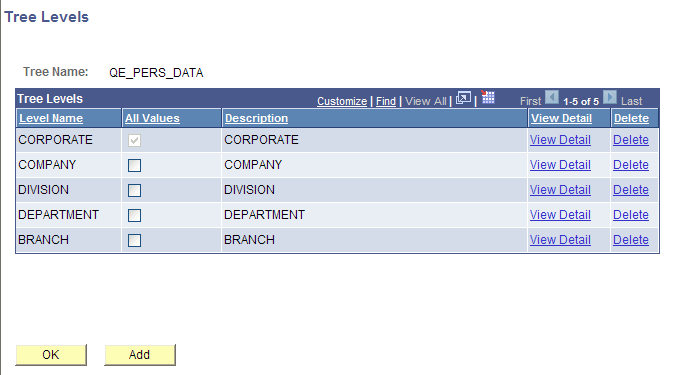
To modify, add, or delete tree levels:
-
In the Tree Levels page, click the appropriate View Detail link to edit level details.
-
To permit nodes to skip over a level and report to a higher level, clear the All Values options.
For example, you might want to skip levels if you have one or more departments that are not part of any division but report directly to the COMPANY level. Select the All Values option to make sure that all values from lower levels report to a node at this level.
Note:
The All Values option for the top level (root node) is selected but not available. You cannot skip over the top level.
-
To delete a level, click the appropriate Delete link.
You cannot delete a level that has nodes associated with it.
-
To add new levels, click the Add button.
The Tree Levels page appears.
Note:
When the multiuser environment is enabled, users can only add new levels to a branched tree when the root branch is checked out and the tree has no other checked out branches.
-
Enter a name for the level.
Use a name that reflects what the nodes at this level represent. For example, the first level in the Department Security tree is CORPORATE, indicating that the root node is Corporate Headquarters.
-
Specify whether nodes can skip over the level.
Select this option if you want to make sure that all values from lower levels report to a node at this level. To allow nodes to skip a level, clear the All Values option.
-
Click the OK button.
The Tree Level page closes. If you entered the name of an existing level from another tree, the level name is added. If you entered a new name, PeopleSoft Tree Manager displays the page for entering tree level information. The displayed page is the page specified for levels in the tree structure. For most trees, it is the Tree Level page.