Setting Display Options
Use the Configure User Options page (PSTREEMGROPTIONS) to specify what information appears on the Tree Manager page. You can also use this page to turn off and on tree node descriptions and set the default action for dragging and dropping nodes.
Use these steps to access the Configure User Options page:
-
Select Tree Manager, Tree Manager.
-
Search for an existing tree or create a new one.
-
Open a tree on the Tree Manager page and click the Display Optionslink to access the Configure User Options page.
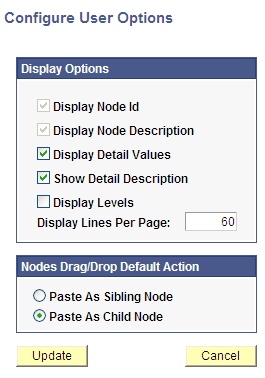
This example illustrates the fields and controls on the Configure User Options page.
To enable or disable tree node descriptions:
-
In the Configure User Options page, select each option to enable or disable its display option.
The Display Levels option is not available if levels are not used.
-
Enter the number of lines that you want each page to show.
The default number of lines is 60. The new number of lines entered remains valid until you change it again. The value remains persistent even if the user ends and restarts an internet session.
Note:
Displaying a large number of lines may impede performance. Oracle recommends a number of less than 300 lines per page.
This example illustrates all display options on the screen: node ID, node description, detail values, and levels.
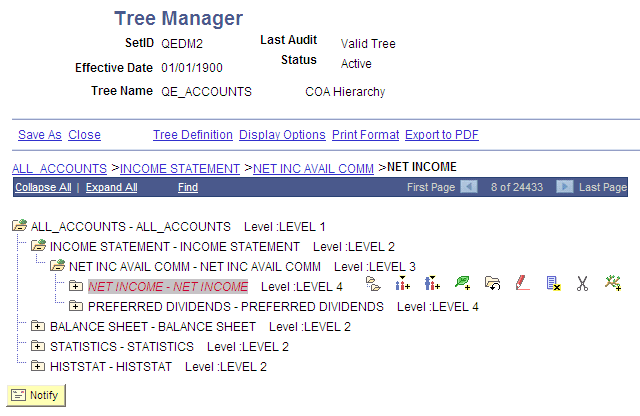
You can click the level name next to the node to display the Levels page and edit the level information.
Note:
Tree node descriptions will not be visible if the effective date of the tree is earlier than the effective date of the node.
Setting the Default Action for Dragging and Dropping Nodes
You can use the Nodes Drag/Drop Default Action group box to set the default action for dragging and dropping nodes; you can select either the Paste as Sibling Node icon or the Paste as Child Node icon.
Note the following options when setting the drag-and-drop default action:
-
When right-handed users drag nodes using the left mouse button, they drop nodes using the set default action.
When right-handed users drag nodes using the right mouse button, they drop nodes using the action that is not set as the default action.
-
When left-handed users drag nodes using the right mouse button, they drop nodes using the set default action.
When left-handed users drag nodes using the left mouse button, they drop nodes using the action that is not set as the default action.
-
For Macintosh systems, because one mouse button exists instead of two, users dragging nodes will drop nodes using the set default action.
-
The setting for the drag-and-drop default action is session-based. For this reason, after a user closes a tree, this setting reverts to the default assignment Paste As Child Node.
Related Topics