Using Navigation Options
Use the Detail Navigation page (PSTREEMGRNAV) to select a detail page to open from the tree when editing data for the selected node or detail. For example, using the Personal Data tree, you can navigate to pages such as Personal Data, Benefits, or Salary Information.
Navigation:
-
Select Tree Manager, Tree Manager.
-
Search for an existing tree or create a new one.
-
Select a node or detail on the Tree Manager page and click the Navigation Options.
Note:
The Navigation Options link appears only if multi-navigation flags have been selected in the tree structure for nodes, details, or both.
This example illustrates the fields and controls on the Detail Navigation page. Definitions for the fields and controls appear following the example.
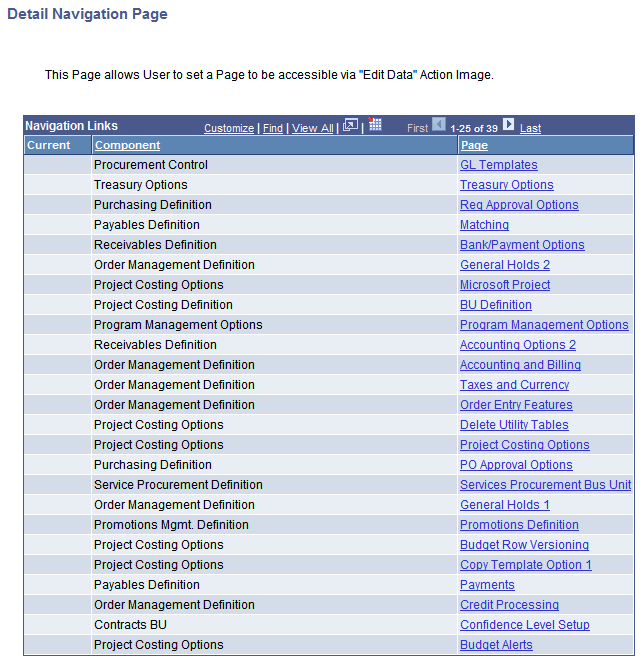
You can select a detail page to open when editing data for nodes or details. For example, using the Personal Data tree, you could navigate to pages such as Personal Data, Benefits, or Salary Information.
The page reflects the node or detail selection when you clicked the Navigation Options link. If no selection was made, the page reflects the first entry, node or detail, on the Tree Manager page.
Note:
This page is available only if the multiple navigation options have been selected on the Tree Structure record.
| Field or Control | Description |
|---|---|
|
Component |
This column lists components that you can navigate to when editing tree node or detail value data. |
|
Page |
This column displays pages that you can navigate to within the component. |
|
|
Click the Current Navigation icon to identify the current navigation selection. |
|
Set |
Click a page and then click this button to change navigation to the selected page. |
|
Reset Default |
Click to change the navigation back to the default page specified in the tree structure. |
|
Cancel |
Click to return to the Tree Manager page without saving any changes. |

Note:
The newly selected navigation path remain current for the browser session. The path returns to the default for each new session.