Testing a Subscription Process
To test a TREE_CHANGE subscription process:
-
Select Tree Manager, Tree Manager.
-
Search for an existing tree and open it in the Tree Manager page.
-
Change any tree and save it.
Note:
You can also use Save As functionality to create a new tree.
-
Select
-
Select the Subscription Contracts tab.
-
Select a node in the Node Names field.
-
Select the TREE_CHANGE option from the Service Operation drop-down list.
-
Select the TREE_MAINT option from the Queue Name drop-down list.
-
Click the Refresh button.
A list of service operations are displayed under your test subscription.
This example illustrates the fields and controls on the Subscription Contracts page with the list of service operations received under test subscription.
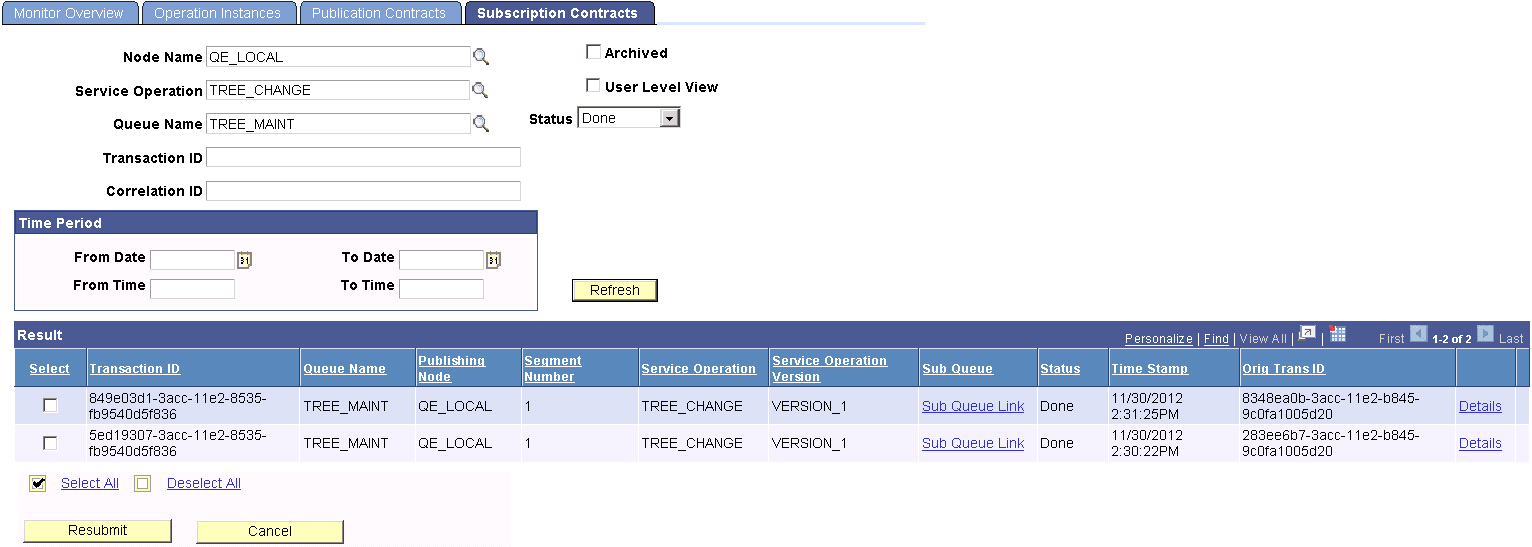
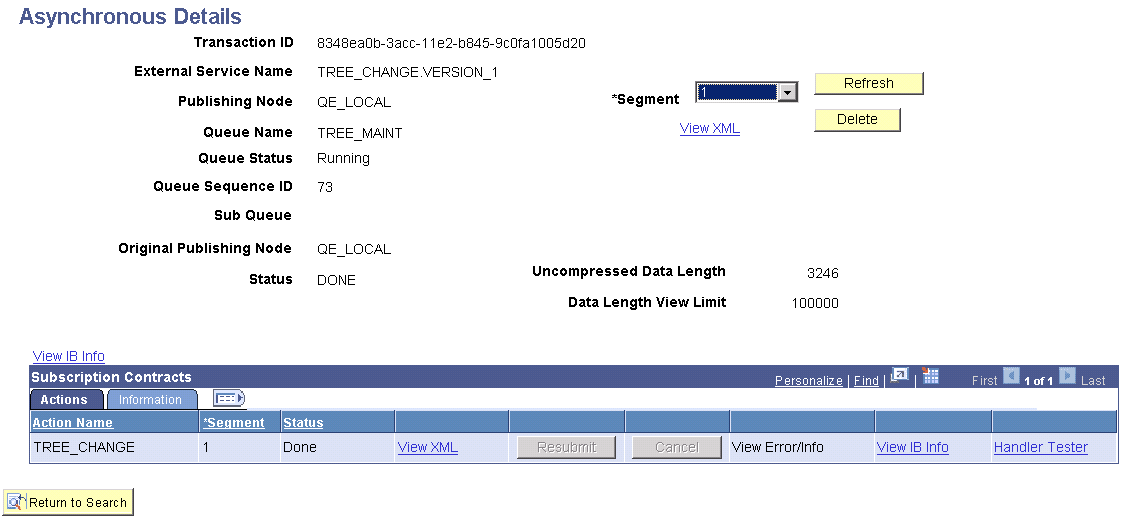
When you click the Details link in the Results section of the Subscription Contracts page, the Asynchronous Details page appears.
This example illustrates the fields and controls on the Asynchronous Details page.
Note:
If a subscription PeopleCode test program is used as in previous example, you can view the file being generated (Windows OS) as a part of a test subscription class at e:\temp\subscription.txt.