Understanding TreeMover and PeopleSoft 8.x Trees
As with other PeopleSoft Application Engine processes, you initiate the TreeMover process from PeopleSoft pages. You need to submit a few required parameters at runtime, including the file name for each tree import (load) or tree export (unload). You can run TreeMover each time you need to load a tree, or you can set PeopleSoft Process Scheduler to run a tree load process automatically.
To view the results of TreeMover processes, perform the following steps from the Tree Import or Tree Export page:
-
Click the Process Monitor link.
The Process List page appears. The run status for your process will appear as Success, No Success, or Warning.
Note:
If you receive a No Success or Warning status, you should also review the TreeMover log file. This file may include additional information that the Process Monitor does not include.
-
Click the Details link.
The Process Detail page appears.
-
Click the Message Log button.
-
Click the Explain button for further details on each message.
You can also view the
log output file. To find this file, navigate to the log_output directory.
The location of the log_output directory is specified in the Process
Scheduler configuration file. After you are accessed the log_output
directory, navigate to the following path: /AE_TREEMOVER_<PROCESS_ID>/TreeMover-<Date-Time>.log.
This example shows the full path to the log output file – the italicized portion of the path is specified in the Process Scheduler configuration file:
C:\Documents and Settings\admin\psft\pt\8.xx-xxx-xx\appserv\prcs\QEDMO\log_output\AE_TREEMOVER_59\TreeMover-YYYY-MM-DD-09.44.59.log
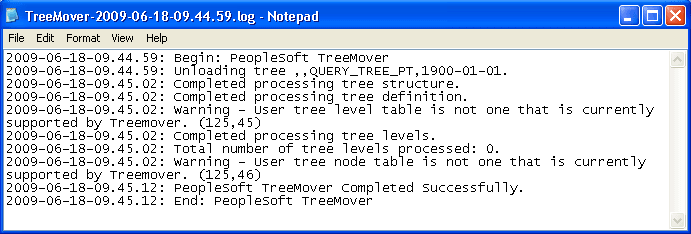
This example shows the TreeMover log file.
The delivered TreeMover application can move only tree node data that is associated with the PS_TREE_NODE_TBL and only tree level data that is associated with the PS_TREE_LEVEL_TBL. You can modify TreeMover to support other tables for node and level data.
Note:
Creating TreeMover customization for moving non-standard node and detail user data is a complicated process. Oracle recommends using PeopleSoft Data Mover or other database tool when you move user data from a source database to a target database.
When a tree replaces an existing tree using the Tree Import Utility, the system import a new tree using a unique name and check if the tree creation process is successful. If the tree creation process is successful, the system delete the existing tree and rename the newly created tree. If the import file from which you are importing is corrupted, you don't lose your existing tree.
Also, if the existing tree was secured by Definition Security, it is automatically removed from the Definition Security Group at the time of deletion. Because the removal of the tree from the Definition Security Group occurs prior to the import, the utility has no knowledge of the tree being secured, and therefore, the new tree will have to be manually secured after the import is complete.