Configuring a Worklist Volume Monitor
To access the worklist volume monitor Setup page, select PeopleTools, Workflow, Monitor Worklists, Configure Worklist Monitor.
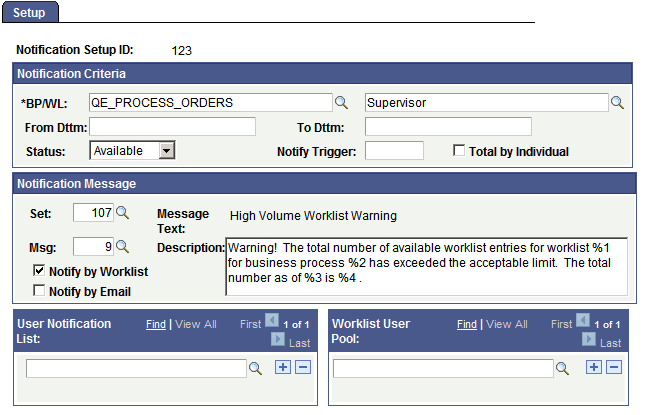
This example illustrates the fields and controls on the Setup page.
To configure a worklist volume monitor:
-
Search for an existing business process name, worklist name, or worklist monitor setup ID, or add a new one.
Use this page to specify which worklist to monitor, how many work items to allow in the worklist, and which message to send when the worklist exceeds the threshold.
-
In the Notification Message group box, specify when you want the worklist volume monitor to inform you about the number of worklist entries.
Use the two drop-down list boxes on the first line to identify the worklist that you want to monitor. In the left box, select the business process; in the right box, select the worklist name.
-
Specify a date and time range during which the monitor counts work items.
By default, the worklist volume monitor counts work items added to the worklist starting from today, the day that you define it, through two years from now. To count work items that are already in the worklist, change the value in the From Dttm (datetime) field to an earlier date.
-
Specify which work items to count.
The Status drop-down list box specifies which work items to count, based on their status. Available values are Available (default), Selected, Worked, and Cancelled.
-
In the Notify Trigger box, enter the number of work items that constitute the worklist’s threshold.
When the worklist contains this number of entries, the worklist volume monitor sends a warning message.
-
Specify whether to measure the threshold by an individual user’s number of work items or the number of total work items.
If you enter the threshold for each individual user, select Total by Individual. If you enter the threshold for the entire worklist, clear the check box.
For example, if a worklist has work items that wait for a manager’s approval, you can monitor how many work items are in each manager’s worklist or how many are in all managers’ worklists.
-
In the Worklist User Pool box, select the users whose work items you want to include in the count.
When the worklist volume monitor counts work items, it includes only those assigned to a user ID that appears in this box. Click the Add button to add as many users as needed.
-
Set the notification message.
The Notification Message box defines the message that the worklist volume monitor sends when a worklist contains too many work items. The default message is fine for most circumstances, but you can select any message from the PeopleTools Message Catalog. When you select the set and message, the subject and text of the message appear to the right.
Note:
The subject of the message is always High Volume Worklist Warning.
-
Specify how to deliver the message.
The worklist volume monitor delivers messages to a user’s worklist, through email, or both. Select Notify by Worklist or Notify by Email.
-
Specify to whom to send the message.
In the User Notification List box, enter the users to whom you want the monitor to send the warning message.
-
Save the page.