Scheduling Worklist Volume Monitors to Run
To access the Worklist Volume Monitor page, select PeopleTools, Workflow, Monitor Worklists, Worklist Volume Monitor.
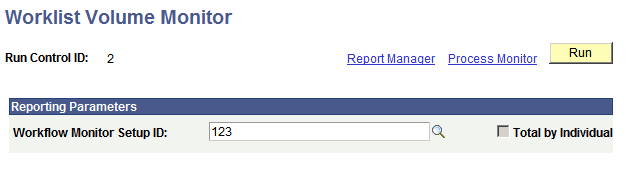
This example illustrates the fields and controls on the Worklist Volume Monitor page.
To schedule worklist volume monitors to run:
-
In the Workflow Monitor Setup ID field, select one of the worklist volume monitors that you defined.
When you define a worklist volume monitor, you can specify the volume threshold either as the number of work items that an individual user has or as the number of total work items. The Total by Individual check box indicates which option you specified for the selected worklist volume monitor. This information is important on the Process Scheduler Request page.
-
Click the Run button.
The Process Scheduler Request page appears.
-
Select a program to run.
The Application Engine program determines whether to monitor by group or by individual, based on whether the Total by Individual check box is selected in the worklist volume monitor that you are processing.
-
Complete the Process Scheduler Request page.