Defining Component Notification Templates
To access the Define Template page, select PeopleTools, Workflow, Notifications, Notification Templates
This example illustrates the fields and controls on the Define Template page.
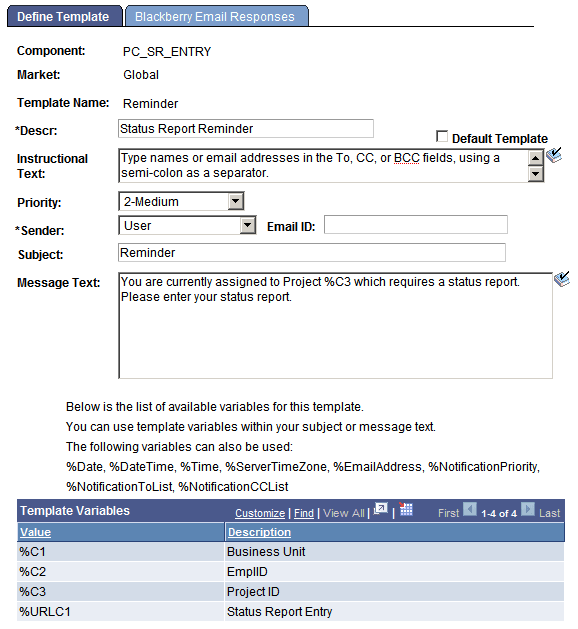
After you define template variables, you can create notification templates. You can define more than one template for a component.
| Field or Control | Description |
|---|---|
|
Descr (description) |
Enter a template description to appear on the Send Notification page if more than one template is defined for the component. |
|
Default Template |
Select to identify one template per component as the default template. This is informational only. |
|
Instructional Text |
Enter text to appear at the top of the Send Notification page for this template. |
|
Priority |
(Optional) Set a default priority for this notification. |
|
Sender |
Select: User: Send value to the email address of the user who performs the send. System: Send to the email address of the application server setting SMTPSender. System-Blackberry: Send to the email address of the application server setting SMTPBlackberryReplyTo. Other: Send to the value in the Email ID field. |
|
Email ID |
If you selected Other for the sender, enter an email address (for example, CustomerSupport@example.com). |
|
Subject and Message Text |
Specify text or any of the available variables (for example, %C1 or %Date) to include in the subject and message. |
If BlackBerry responses are entered, the Sender field on the Define Templates page is automatically set to System-BlackBerry. This is the only valid value for a BlackBerry template. The Email ID field is blank so that the receiver of the BlackBerry notification always replies to a specific email address. The BlackBerry Email Response program polls that one email address.