Defining a Default Message
To access the Default Message page, select PeopleTools, Workflow, Defaults and Messages, Define Worklist/Email Messages.
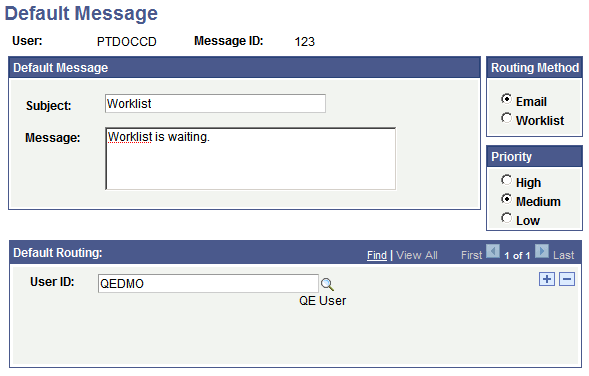
This example illustrates the fields and controls on the Default Message page.
To define a default message:
-
Search for an existing message ID or add a new one.
Use the standard search or add method to enter the message ID and access the Default Message page.
Note:
Messages are keyed by user ID and message ID.
-
Enter a subject line and message text in the Subject and Message fields.
You can enter as much or as little of this information as necessary. You can enter the remaining information when you actually send the message.
-
Specify whether to send the message by email or to a worklist.
-
Assign a routing priority to the message.
Select High, Medium, or Low.
-
If you always send this message to the same set of users, select their role user names in the Default Routing field.
-
Click the plus button to add additional role users. You can enter as many or as few users as needed. You can change the list when you actually send the message.
-
Save the page.