Sending a Message
To access the Worklist/Email Message page, select PeopleTools, Workflow, Defaults and Messages, Send Worklist/Email Messages.
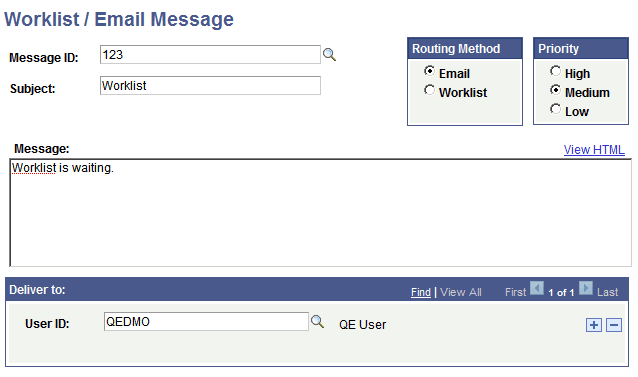
This example illustrates the fields and controls on the Worklist/Email Message page.
To send a message (either by default or for a particular purpose):
-
If a default message contains the text to deliver to users, select its message ID.
The information from the default message appears on the page. You can add or change this information without affecting the default message.
-
Enter a subject and message text.
The subject that you enter appears as the subject line of an email message or the description of a worklist entry.
-
Select a routing option and priority.
-
Select the role users to whom you want to send the message.
-
Click the plus button to add (or the minus button to remove) role users from the list.
You can enter as many or as few users as needed.
-
To preview a message, click View HTML.
-
To send the message, save the page.