Defining Search Definition
When you select the Search Definition button, the Search Definition component will be displayed. For Worklist Search, you need to define the following pages:
-
General Settings
-
Map Search Attributes
-
Security
-
Advanced
After completing the necessary page, save the search definition.
General Settings
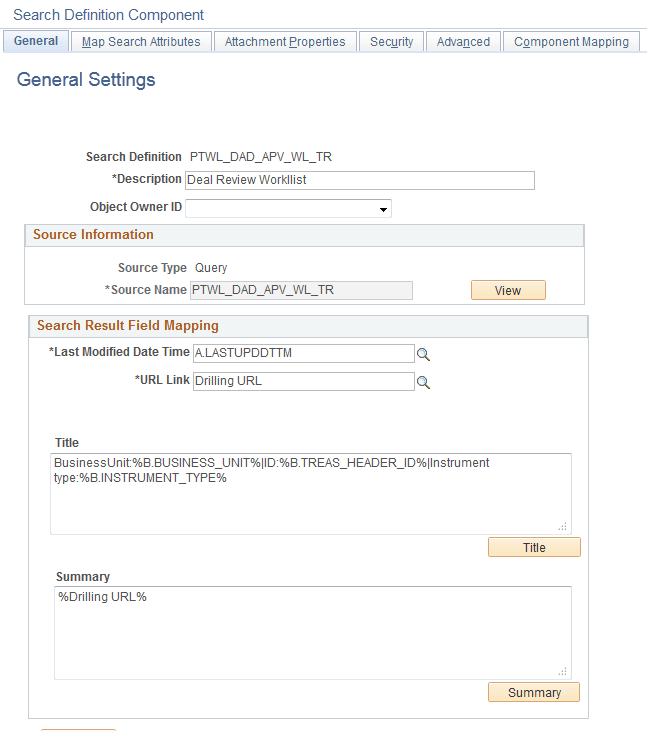
To access the Search Definition-General Settings page, click the Search Definition button on the New WorkList Search Definition page.
This example illustrates the fields and controls on the Search Definition-General page. You can find definitions for the fields and controls later on this page.
| Field or Control | Description |
|---|---|
|
Search Definition |
Displays the search definitions name as specified when adding a new value. Note: At least one search definition must use the same name as the search category to which it belongs. |
|
Description |
Provide any additional information to distinguish the search definition. |
|
Source Type |
The source type will always be Query and read only. |
|
Source Name |
The query that was generated for the worklist. |
|
View |
Click to view the underlying query in Query Manager. This helps you to better understand the data being indexed by the search definition. You cannot make changes to the query when accessing it from the PeopleSoft Search Framework. The View button is intended for informational purposes only. |
|
Last Modified Date Time |
Select the field specified in the query that determines the underlying record's update date and time. For example, LASTUPDDTTM. |
|
URL Link |
Select the query field containing the drilling URL defined for the query. |
|
Title |
Define the title of the search result document. This is the bold, first line of the search result. You can add text and bind variables to the title by clicking the *Title button. You cannot add text to the edit box directly. |
|
Summary |
Define the summary, or body, of the search result text. This is the text that appears below the title in a search result document. You can add text and bind variables to the summary by clicking the *Summary button. You cannot add text to the edit box directly. |
Map Search Attributes
Select the Map Search Attributes tab.
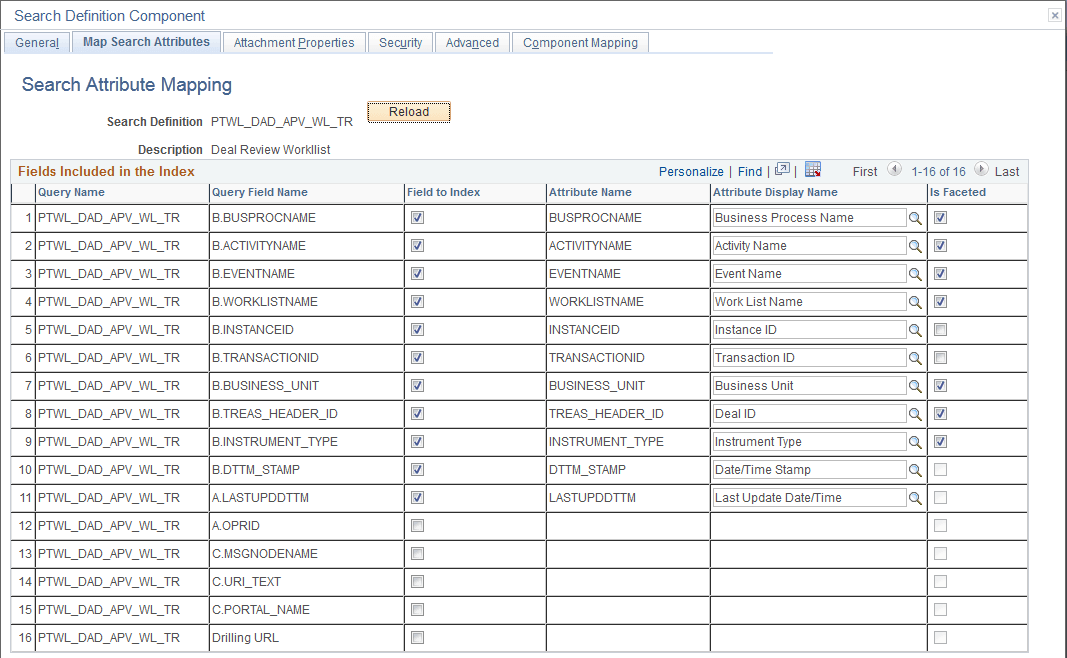
The Map Search Attributes page displays all of the query fields for the generated query.
This example illustrates the fields and controls on the Search Definition - Map Search Attributes page. You can find definitions for the fields and controls later on this page.
| Field or Control | Description |
|---|---|
|
Field to Index |
Select the fields that you want to be indexed by the search engine. These fields would be those that you intend the end users would include in search queries intuitively. Fields that you do not select are not indexed. The remaining columns in the grid become enabled only after selecting the Field to Index check box for a particular row. When selecting fields also consider fields that may help to group results or help distinguish security access. Consider the following when you select fields for indexing:
|
|
Attribute Name |
Displays the pre-defined attribute name that identifies the query field in the search engine. Note: The attribute name must be unique in a search definition. An Attribute Name is formed by concatenating the field name with its field label, unless the label is the default. If the field label is the default, just the field name is used for the attribute name. For example, if the field is VENDOR and the Display Name chosen is the default, then the attribute name is VENDOR. If the Display Name chosen is SUPP1 and it is not the default, then the attribute name is VENDOR_SUPP1. Due to this, there might be conflict between two fields which end up having same attribute name, and in these cases it is recommended to create a new label to make the attribute unique. |
|
Attribute Display Name |
Determines how the attribute will display to the end user in the search results and in OpenSearch Dashboards. OpenSearch Dashboards uses the attribute display name as an alias when displaying the fields of a search definition for a visualization. Therefore, the attribute display name must be unique in a search definition. Note: The display name comes from the field labels associated with the Query Field Name. It cannot be entered manually. If the wording of the display name is not appropriate, you need to add a new field label. If you select a field that is not the default field label, the Attribute Name will change to reflect your choice. If you change the field labels for existing search definitions, you must perform an update operation for the search definition on the Deploy Search Definition page. Note: When creating search definitions be careful not to use the same Attribute Display Names that are used by search record key, alt keys, and list box items, unless their attribute name also matches the search record field name. Using the same display names affects how (if) fields appear to the end user on the Advanced search page. |
|
Is Faceted |
Select to make this field a facet field, meaning that this field can be used to categorize and narrow down search results based on its value. Defining a field as a facet requires some consideration. Facets cannot be blank, so if a field is not required, then the query needs to be structured so that there are not any blank values. You can use defaults on the record, or build COALESCE statements on a view to populate a field with a default (such as ‘None’, “NA” or “Blank”) if it contains a blank value. If a facet does not have a value, then the query is dynamically modified to return No Value as the title of the facet. This processing is performed only on character attributes; not on long and XLAT attributes. Note: Facets based on XLAT fields should be changed to use XLAT Long/Short in the query. Note: There is a data size limit of 2000 characters for faceted fields. The system truncates anything beyond 2000 characters. Important: Values with data types of datetime cannot be used as facets. |
Security
Select the Security tab.
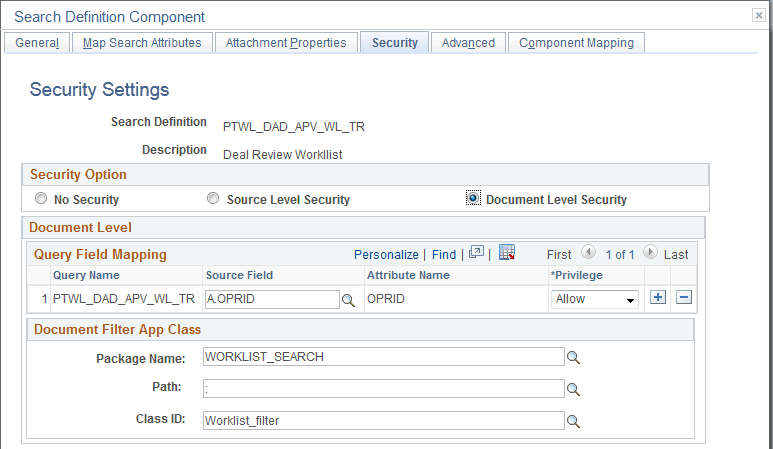
This example illustrates the fields and controls on the Search Definition - Security page. You can find definitions for the fields and controls later on this page.
| Field or Control | Description |
|---|---|
|
Security Option |
Worklist Search uses Document Level Security. Document level security restricts access to specific search results based on users access. For worklists, the user will only see the search results for worklists that meet the search criteria and have been assigned to their user ID. |
|
Source Field |
For Worklist Search, the source field will always be OPRID. |
|
Document Filter App Class |
For worklist search you will always use: Package Name – WORKLIST_SEARCH Path – : Class ID – Worklist_filter |
For additional information on Search Security Setting see Search Technology: Managing Search Definition Security.
Advanced
Select the Advanced tab.
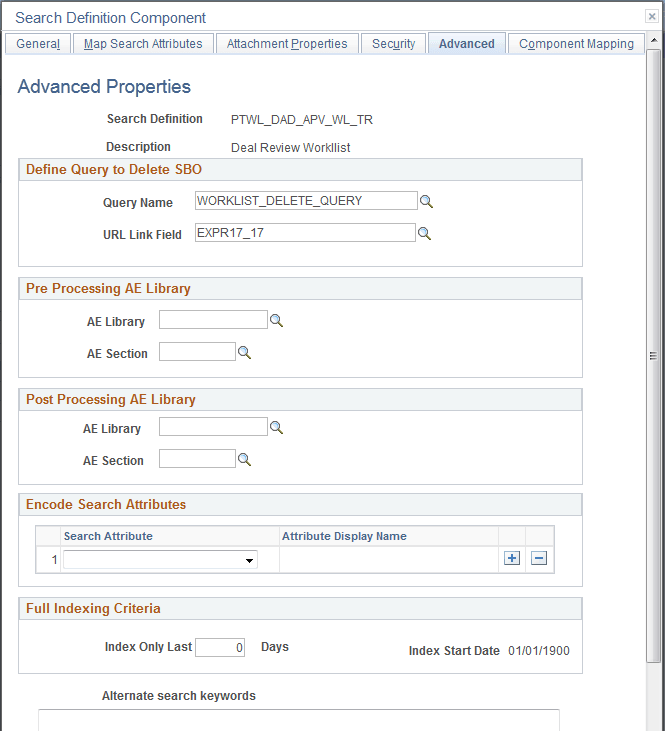
This example illustrates the fields and controls on the Search Definition - Advanced page. You can find definitions for the fields and controls later on this page.
| Field or Control | Description |
|---|---|
|
Query Name |
The query WORKLIST_DELETE_QUERY is used to delete worklist entries from the already indexed documents from the search framework when the worklist item is Marked Worked. |
|
URL Link Field |
This is the drilling URL field for the query, for WORKLIST_DELETE_QUERY it is EXPR17_17. |
For additional information on Advanced Settings see Search Technology: Working With Advanced Settings.