Defining Search Category
To access the Search Category component, click the Search Category button on the New WorkList Search Definition page. This button will become enabled after the search definition is defined.
For Worklist Search, you need to define the following pages:
-
General Settings
-
Advanced Search Fields
-
Facets
After completing these pages, save the search category definition.
General Settings
To access the Search Definition-General Settings page, click the Search Category button on the New WorkList Search Definition page. This button will become enabled after the search definition is defined.
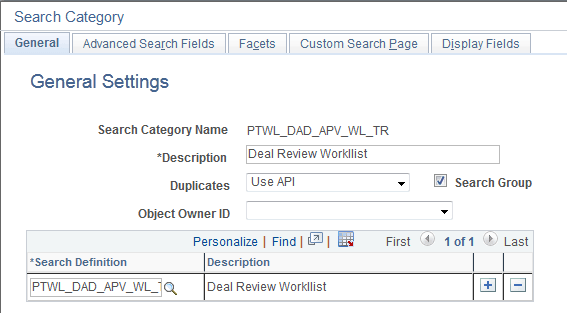
This example illustrates the fields and controls on the Search Category - General Settings. You can find definitions for the fields and controls later on this page.
| Field or Control | Description |
|---|---|
|
Search Category Name |
Displays the search category name. Important: Though any number of search definitions can be mapped to a search category, for each and every search definition, a search category of the same name must exist, and the search definition must belong to that search category. You can create search categories of a different name that are not associated with a single search definition. A search definition may belong to more than one search category, but it must belong to one with the same name. |
|
Description |
By default the worklist name is used in the description. Note: If this search category becomes exposed through Global Search, then the description you enter may appear in the Global Search Bar. The description must be appropriate for end user viewing. Make the description as informative, concise, and intuitive as possible. Note: The description is translatable. |
|
Duplicates |
For worklist searches the default is Use API. The handling of duplicates will be set in the search request object based on the value set by the application, honoring any values produced by the application PeopleCode. |
|
Search Group |
Select to enable this search category to be available for context searching within Global Search. |
|
Search Definition |
Add all search definitions that belong to this search category. |
Advanced Search Fields
Select the Advanced Search Field tab.
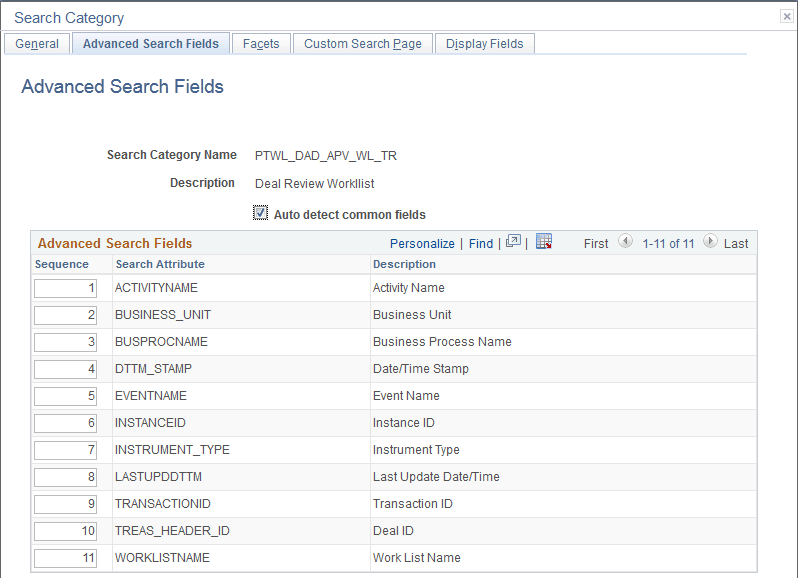
This example illustrates the fields and controls on the Search Category - Advanced Search Fields page. You can find definitions for the fields and controls later on this page.
| Field or Control | Description |
|---|---|
|
Auto detect common fields |
When selected, this flag will gather all fields which are common to all search definitions listed on the General page. This will allow for searching across all search definitions in the category. Select to avoid manually listing the common fields from the joined records. (default) Deselect to delete some or to add additional attributes which are not common to all search definitions. Note: When you select the Auto Detect flag, you must save the search category before the common fields will be properly displayed in the grid. |
|
Sequence |
Control the sequence in which the search attributes appear in the advanced search interface. |
Facets
Select the Facets tab.
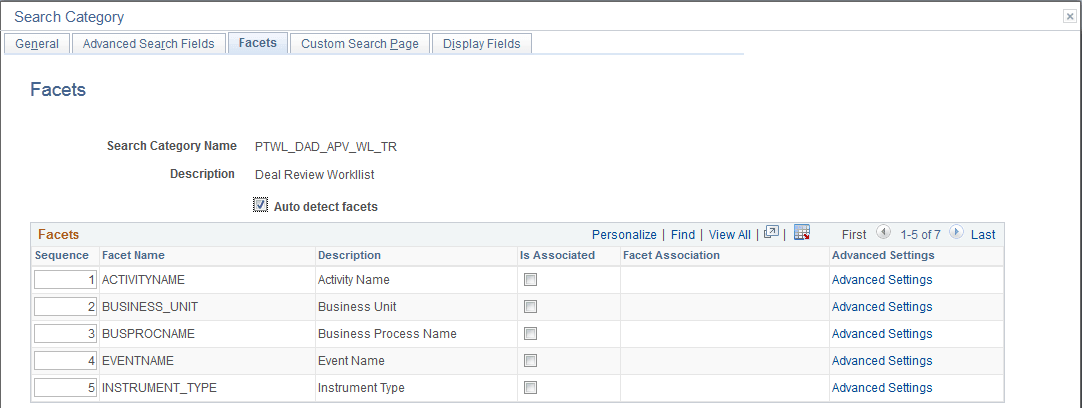
This example illustrates the fields and controls on the Search Category - Facets page. You can find definitions for the fields and controls later on this page.
| Field or Control | Description |
|---|---|
|
Auto detect facets |
Select to detect common facets for all the search definitions belonging to the search category. When you save the search category, any facets that are common to all search definitions are displayed. This saves you from needing to discover which facets can be used to filter across all search definitions. Deselect this option if you wish to remove some facets or add ones that are not common to all search definitions (not recommended as this may distort facet counts). |
|
Sequence |
Control the sequence in which the faceted fields display for narrowing search results in an intuitive fashion for users. For example, perhaps you might want to ensure that these faceted fields display in this order: Country, State, County, City. |