Deploying and Scheduling Worklist Search Index
Before end users can run searches against the search indexes, the search definitions need to be deployed to the search engine so that search engine can create the structure of the search index based on the search definition, crawl the defined search criteria, and populate the index with the results of the search definition query. When your search definitions are deployed , they become a source that you can view under the Sources tab in the administrative interface.
Deploying Search Definition
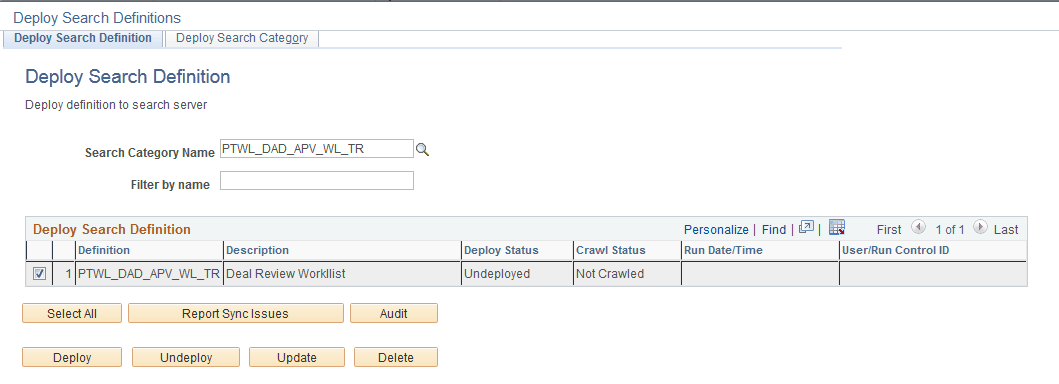
To deploy the search definition, select the Deploy button next to the source name on the New Worklist Search Definition page. The Deploy button is enabled once the search definition and search category have been saved.
This example illustrates the fields and controls on the Deploy Search Definition page. You can find definitions for the fields and controls later on this page.
| Field or Control | Description |
|---|---|
|
Search Category Name |
The search category is defaulted from the New Worklist Search Definition page. |
|
Filter by name |
Use to enter full or partial definition names to reduce the list of search definitions appearing in the grid. Note: The values are case-sensitive. |
|
Deploy Search Definition (grid) |
Displays all existing search definitions defined in the Search Framework. Columns in the grid are:
|
|
Select All |
Click to select all the rows within the grid. Note: If all rows in the grid have been selected, the button title changes to Deselect All. |
|
Report Sync Issues |
Runs an audit checking routine which reports where properties for a search definition differ between PeopleSoft and the search engine. If you have updated a deployed search definition it will no longer be synchronized with the representation on search engine. Results of this check appear in the Update Status column (which, in the case of differences between the corresponding definitions becomes the View Report column). This applies only to deployed definitions. |
|
Audit |
Click to run a series of audits on the selected search definitions to ensure they have all requirements in place. After running the audit process, these additional columns appear in the Deploy Search Definition grid: Audit Status and Audit Report. The Audit Status column will indicate Success or Fail. If the result is Fail, then the Audit Report column appears, displaying an Audit Report link, which you can click to review the audit results and correct the reported issues. See the section below: “Running the Search Definition Audit Process.” |
|
Deploy |
Deploy the PeopleSoft search definitions selected to the search engine, where it becomes a searchable data source. Note: You can deploy multiple search definitions at a time by selecting the corresponding check box in the first column of the grid and then choosing Deploy. Note: When you deploy a search definition, the search category of the same name is automatically deployed. |
|
Undeploy |
Click to remove the representation of the selected search definitions from the search engine . Note: You can undeploy multiple search definitions at a time by selecting the corresponding check box in the first column of the grid and then choosing undeploy. Note: When you undeploy a search definition, the search category of the same name is automatically undeployed. Note: For large indexes, it is recommended to undeploy them during the non-peak hours for performance reasons. While the status displays undeployed, the actual deletion occurs on the search engine asynchronously, and undeploying a larger index requires additional time on it. |
|
Update |
Click to update the representation of the search definition on the search engine. If you have modified a deployed search definition, the PeopleSoft version and the version on search engine will no longer match. Definitions that need to be updated will appear in the synchronization report. Clicking Update synchronizes the search engine representation of the definition to match the PeopleSoft version. |
|
Delete |
Deletes the search definition from the Search Framework. This removes the search definition from the search definition list and from the search categories to which it is mapped. The underlying query and connected query are unaffected. |
Scheduling Search Definition
Before end users can submit search requests against the Search Framework deployed objects, the search indexes must first be built on the search engine. Prior to the index being built, a deployed search definition is an empty shell, containing no searchable data. A search index needs to be built for each individual search definition.
An Application Engine program, PTSF_GENFEED, builds the search index and makes it available for search engine.
Creating a search index with the Search Framework involves the following technologies:
-
Search Framework
-
Application Engine
-
Process Scheduler
-
Feeds Framework
-
Integration Broker
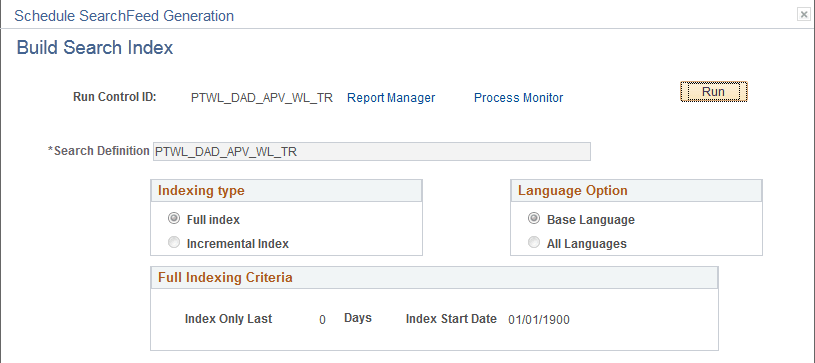
To access the Schedule Search Feed Generation page, click Schedule from the To schedule the Build Search Index, select your options and click Run.
-
Click the Schedule button on the Worklist Search Definitions page.
-
Select your options
-
Click Run.
-
Set process Schedule Request options.
-
Click OK.
-
You will be returned to the New Worklist Search Definition page.
-
Click the Scheduled Status button to view the status of the Process Scheduler job.
This example illustrates the fields and controls on the Schedule SearchFeed Generation page. You can find definitions for the fields and controls later on this page.
| Field or Control | Description |
|---|---|
|
Indexing Type |
Select one of the following:
|
|
Language Options |
Select one of the following:
Your selection depends on the languages enabled for your database and the languages through which you anticipate end users using to perform searches. |