Defining Step Attributes
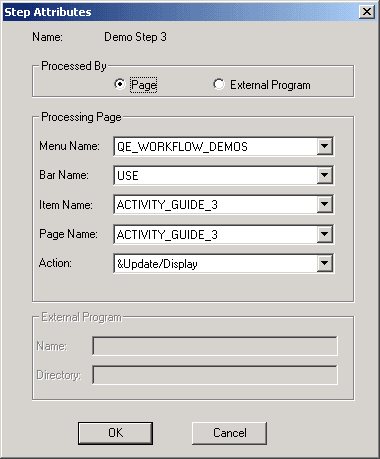
Define step attributes on the Step Attributes dialog box.
This example illustrates the fields and controls on the Step Attributes dialog box.
To define step attributes:
-
Double-click a step, or right-click and select Item Properties.
The Step Definition dialog box appears.
-
Enter a name and icon description.
-
Enter the step and path numbers for each step.
If you’re manually ordering steps, enter a step and path for each step in the activity.
If you’re automatically sequencing steps, the step and path number are automatically updated when you save the activity. However, even if you use this feature, check the step and path number after saving to verify that the steps are in the intended ordered.
-
Select Attributes.
The Step Attributes dialog box appears.
-
Indicate that the step is processed by a page.
Select Page in the Processed by group box of the dialog box. The External Program option is not supported for workflow activity guides.
-
Provide directions for starting the page.
Select the page from the list boxes in the Processing Page group box.
In the Action list box, select the type of activity that the user must perform on the database. When a user selects this step, the system displays the specified page in the specified action mode.
-
Click OK to close the Step Attributes dialog box.