Defining Workflow Activity Guide Options
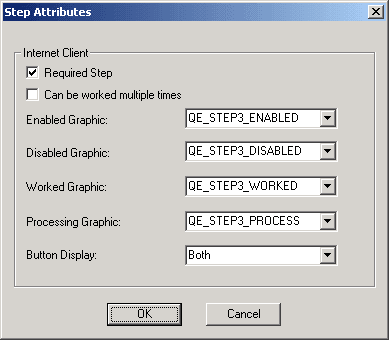
Define workflow activity guide options on the Step Attributes dialog box.
This example illustrates the fields and controls on the Step Attributes dialog box.
To define workflow activity guide options:
-
Select Activity Guide.
-
Configure workflow activity guide options.
Required Step is not currently used by workflow activity guides. However, to create your own programs to enforce required steps, you can use this option to identify them.
Select Can be worked multiple times to permit a user to return to an already-worked step. When this option is selected, the workflow activity guide link that opens the step remains active, even after the step is worked. When this option is cleared, the link is unavailable after the user finishes the step.
The button display determines what users see as they use the workflow activity guide.
Field or Control Description Link
Select to represent each step with the text that you used as the icon description. This text becomes a link to take the user to the page that is represented by the step.
Graphic
Select to represent each step with an icon. The icons are not links, so if you select this option, the user cannot use the workflow activity guide to navigate between pages. Instead, the user must rely on the Back and Next buttons that appear in related pages. Use this option if you want the Back and Next buttons to be the only navigation objects in the workflow activity guide.
Both
Select to display both icons and links. This is the default option.
-
(Optional) Add graphics to represent the possible statuses of the step.
If you display graphics in workflow activity guides, you must specify which graphics to use. Specify four graphics: one for each possible step status. You can use the same graphic for multiple statuses.
Field or Control Description Enabled Graphic
Use for the next step after the step that is currently in process. If you’ve defined parallel paths, multiple steps can be enabled simultaneously. If you’ve enabled both graphics and links, the accompanying link is active.
Disabled Graphic
Use for steps that the user cannot yet start. If you’ve enabled both graphics and links, the accompanying link is inactive.
Worked Graphic
Use for steps that the user has completed. If you’ve enabled both graphics and links, the accompanying link is inactive, unless you marked the step as one that can be worked multiple times.
Processing Graphic
Use for steps on which the user is currently working. If you’ve enabled both graphics and links, the accompanying link is inactive.
You can select any graphic in the PeopleSoft image catalog. To use a custom graphic, you must first add it to the catalog.
-
Repeat for each step in the activity.
-
Save the workflow activity guide.