Defining Worklist Attributes
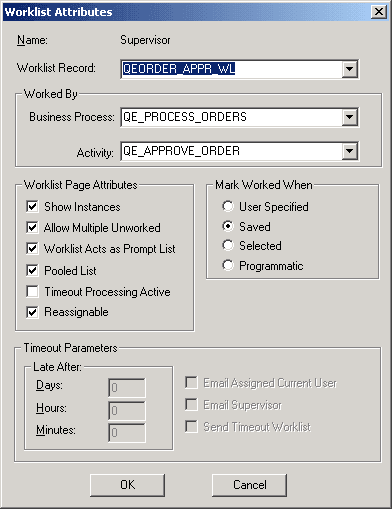
Define worklist attributes in the Worklist Attributes dialog box.
This example illustrates the fields and controls on the Worklist Attributes dialog box.
To define worklist attributes:
-
In the Worklist Definition dialog box, click Attributes.
The Worklist Attributes dialog box appears.
-
Select the worklist record, business process, and activity from the appropriate drop-down list boxes.
Field or Control Description Worklist Record
Select the record definition to use for storing and displaying work items.
Business Process
Enter the business process name that is associated with the worklist item.
Activity
Enter the activity name that is associated with the worklist item. When a user selects a work item from the worklist, the system displays the page (or external program) that is associated with the first step in the activity that you specify here. The first step is the one marked as Step 1 Path 1 in the step map.
You usually select the next activity in the current business process, but this is not required. You can route to any activity in any business process. This is the Worked by business process and activity, which may not be the same as the business process or activity that triggered the worklist.
-
Select worklist page attributes.
Field or Control Description Show Instances, Allow Multiple Unworked, and Worklist Acts Like Prompt List
Reserved for future use.
Pooled List
Specifies whether the system creates a single shared work item or one work item for each worklist user. With a pooled worklist, all worklist users receive copies of shared work items; the first user who selects an item works on it, and the item is dropped from everyone else’s worklist. With a non-pooled worklist, each user receives a personal copy of each item.
If Delete Pooled WL When Select is selected on the Worklist System Defaults page, a pooled worklist will be deleted from other queues when a user selects it.
Timeout Processing Active
Specifies whether the system checks this worklist for overdue items.
Reassignable
Enables users to reassign worklist items to other users.
-
Specify the timeout parameters (if timeout processing is active).
Field or Control Description Timeout Parameters
Specifying a timeout condition is optional. If you want all work items to remain in this worklist until a user processes them, leave the controls in this group box blank, or clear the Timeout Process Active check box. Otherwise, specify how long to wait (days, hours, and minutes) for a user to process a work item. The system adds the three values together. If a work item sits in the worklist for longer than the specified amount of time, the system performs the action identified by the check box that you select.
Email Assigned Current User
Send an email message to the user to whom the work item is assigned, warning that the item is overdue.
Email Supervisor
Send an email message to the user’s supervisor. The supervisor is assigned as the user’s supervising role user in the user profile, maintained through PeopleSoft Security. In PeopleSoft HRMS applications, the system uses the supervisor from the user’s PERSONAL_DATA record.
Send Timeout Worklist
Send a new worklist item to the currently assigned user’s timeout worklist.
-
Specify what the user must do before the system considers a work item to be worked.
Work items remain in a user’s worklist until they have been worked.
Field or Control Description User Specified
A work item is marked as worked when the user explicitly identifies it as worked by selecting it on the Select Worklist page and clicking the Mark Worked button. This option is useful when the user must return to the same work item several times or wait for supporting information.
If the worklist item is replicated from another database, the Mark Worked function is disabled in the target database.
Saved
A work item is marked as worked when the user saves work on the page that is assigned to the worklist. This option is appropriate for work items that the user can complete right away.
Selected
A work item is marked as worked as soon as the user selects it from the worklist. This option is appropriate for work items that notify the user of an event; just seeing the item is sufficient.
Programmatic
A work item is never marked worked directly by the user. It can be marked as worked only with PeopleCode. This setting enables you to provide additional logic to determine when a work item can be considered worked.
Note:
Worklists are limited to 999 items. If a user has more than 1000 worklist items in their worklist, the system may not mark the correct worklist item as Worked when the user clicks the Mark Worked button. Use the Worklist Volume Monitor to monitor worklist volumes.
-
Click OK to close the Worklist Attributes dialog box and return to the Worklist Properties dialog box.