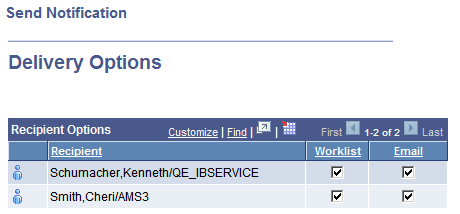
Setting Delivery Options
At runtime, the Send Notification page references the routing preferences for each recipient to determine the default delivery options. Therefore, the system assumes that:
-
Security administrators have set this value for any user on the User Profile page.
-
Users have set this value on their My System Profile pages.
Setting Preferences on the User Profile Page
To set preferences on the User Profile page:
-
Select PeopleTools, Security, User Profiles, User Profiles.
-
Enter the user ID.
-
Select the Workflow tab.
-
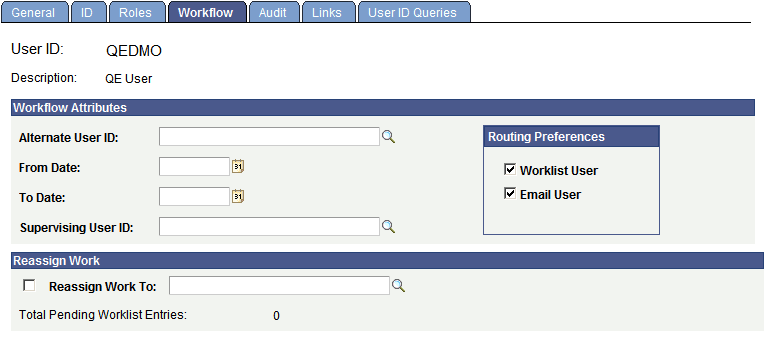
In the Routing Preferences group box, select Worklist User, Email User, or both.
Note:
The Email User check box controls email notifications sent using the Send Notifications page. If the check box is not selected, email notifications are not sent to the user through the Send Notifications page. If you are sending email notifications using PeopleCode, this check box has no effect. You must create your own checking logic for sending email notifications.
This example illustrates the routing preferences in User Profile page.
Setting Preferences on the My System Profile Page
To set preferences on the My System Profile page:
-
Select PeopleTools, My System Profile.
-
In the Workflow Attributes group box, select the Email User check box, the Worklist User check box, or both.
Based on the routing preferences, Delivery Options are set for each recipient, as shown in the following examples:
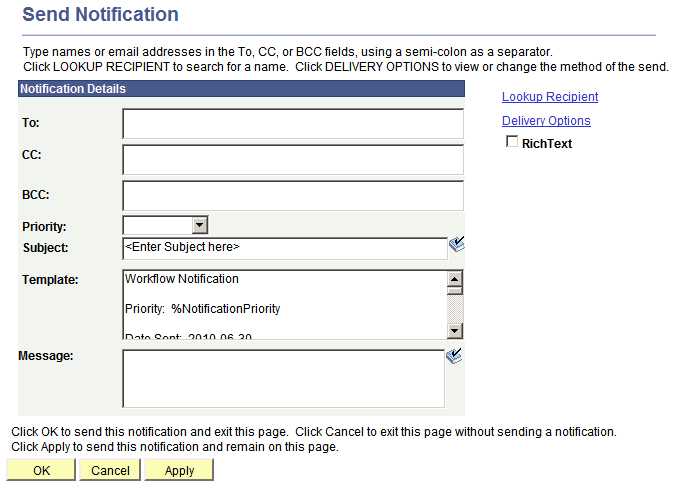
When you click the notify button on a page, the send notification page appears.
This example illustrates the fields and controls on the Send Notification page.
Note:
Users should enter notification recipient names in the format Last_Name,First_Name.
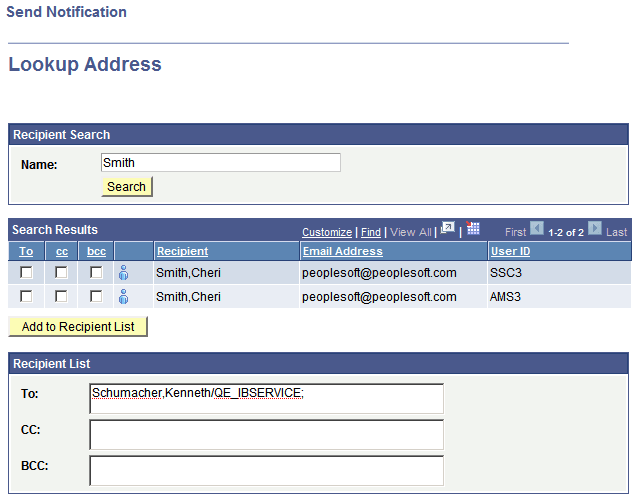
Use the Lookup Recipient link to search for recipients.
This example illustrates the fields and controls on the Lookup Address page.
Use the Delivery Options link to select the delivery format for each recipient.
This example illustrates the fields and controls on the Delivery Options page.