Specifying Rule Step Rules
This section discusses how to specify rule step rules.
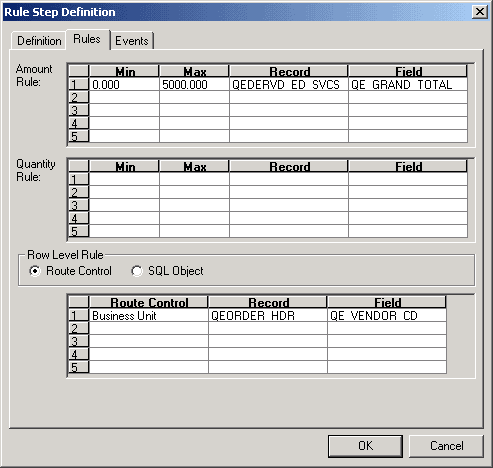
This example illustrates the fields and controls on the Rule Step Definition dialog box - Rules tab.
To specify rule step rules:
-
Select the Rules tab to specify the approval parameters.
-
Specify which transactions the specified role users have the authority to approve.
You can specify which transactions a user can authorize in the following three ways:
-
If approval requirements are based on a monetary amount, enter the criteria in the Amount Rule group box.
The user can authorize transactions whose monetary amount is between the values in the Min (minimum) and Max (maximum) fields. The associated record and field specify the record and field containing the amount in the original transaction.
-
If approval criteria are based on a (non-monetary) quantity, enter the criteria in the Quantity Rule group box.
The user can authorize transactions in which the (non-monetary) quantity is between the values in the Min and Max fields. The associated record and field specify the record and field containing the quantity in the original transaction.
-
If the approval criteria are based on the approver’s user data, enter the criteria in the Row Level Rule group box.
-
-
There are two methods of obtaining row level criteria: using a route control or a SQL object.
-
If you select Route Control, the range of transactions that the user can authorize is determined by the user’s route control profile. The system compares the value from the specified record and field with the user’s route control profile. If the value is in the range to which the route control profile gives the user access, the user can approve the transaction.
-
If you select SQL Object, the range of transactions that the user can authorize is based on other data in the database.
Evaluate the data using a SQL program that you create as an Application Designer SQL object. After you create the SQL object, enter its name next to the SQL Object option. Enter bind variables used in the SQL program in Record and Field. At most, five record and field binds can be used.
If SQL Object is selected, the worklist defined in the On Pre-Approved activity or event must be consistent with the Operator defined by the SQL Object. Be sure that the Route to Role matches the Operator rendered by the SQL Object.
For example, if you use the PeopleSoft HRMS applications, which store extensive data on reporting relationships within the organization, you can use a SQL object to specify that a manager is authorized to approve only requisitions submitted by people in that manager’s department. Using order_hdr.deptid as the bind variable, you can use the following SQL program:
Select a.oprid from psoperalias a, ps_dept_tbl b where a.emplid = b.emplid and⇒
 b.deptid = :1
Note:
When using a SQL object as a row-level route control in an approval rule set, set the field map for worklist OPRID consistently.
-
You can specify more than one authorization rule for any rule other than SQL object. To add additional authorization rules, enter data in multiple grid rows. For example, you can base the routing on more than one route control field. The number in the Seq (sequence) field is changed incrementally for each rule that you add. You can also use multiple authorization types for a single step. In this case, the user can authorize only transactions that meet all of the specified rules for this step.
-