Enabling PeopleSoft Application Help Links Using the Hosted Online Help
To enable Help links:
-
Sign in to your PeopleSoft application.
-
Select .
-
Click Search and select the profile name that you specified during your PeopleSoft installation.
-
On the General page, enter the help URL in the following format:
https://docs.oracle.com/pls/topic/lookup?id=%CONTEXT_ID%&ctx=library_ID1&ctx =library_ID2&ctx=library_ID3Replace the values of library_ID1, library_ID2, and so on, with the library IDs that you identified during the Prerequisites. To search across multiple help libraries, add as many instances of &ctx=library_ID as you need. If you include both PeopleTools and applications, list the PeopleTools library ID first.
Examples:
-
Latest Human Capital Management:
https://docs.oracle.com/pls/topic/lookup?id=%CONTEXT_ID%&ctx=hcm92latest -
Latest PeopleTools 8.62 and latest Human Capital Management:
https://docs.oracle.com/pls/topic/lookup?id=%CONTEXT_ID%&ctx=pt862latest&ctx=hcm92latest
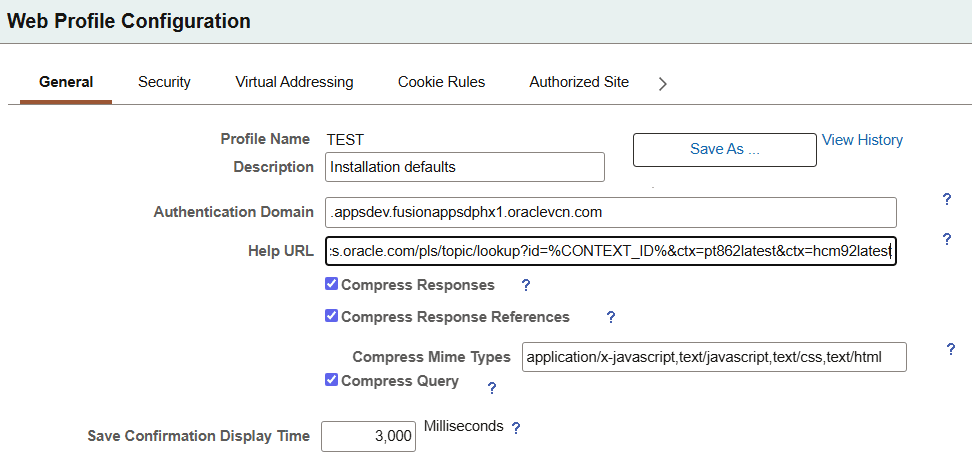
This example illustrates the General page with the help URL for the latest PeopleTools 8.62 and latest Human Capital Management help:
-
-
Save your changes.
-
Restart your web server.
-
Test the links by clicking the Help link on at least one page in each of the PeopleSoft applications that you defined in the help URL.
Note:
If you reach the Oracle Help Center but receive a “page not found” error (404), this could mean that the library ID is incorrect or that no help is available for the page that you’re testing. If the library ID is correct, try testing some other pages.