Using the Contents Sidebars
Use the contents sidebars to navigate in the current book or in the current topic if a On This Page sidebar is also available on the right.
Using the Left Sidebar
The sidebar on the left side of every help page provides a table of contents of the current book, along with other controls. The table of contents is an expandable and collapsible tree view with links to all help pages in the book. When you go to a new page in the help site, the left sidebar automatically selects and moves focus to the page that you’re viewing. This helps you see where you’re at in the book.
Use the following buttons in the right sidebar:
| Field or Control | Description |
|---|---|
|
|
Select to hide or display the sidebar. |
|
|
Select to toggle whether the table of contents is fully expanded, or collapsed to chapter titles only. |
|
|
Select to display the full table of contents in the topic pane. |
|
|
Select to download a PDF version of this book. |
|
|
Select to share a link to this page. |


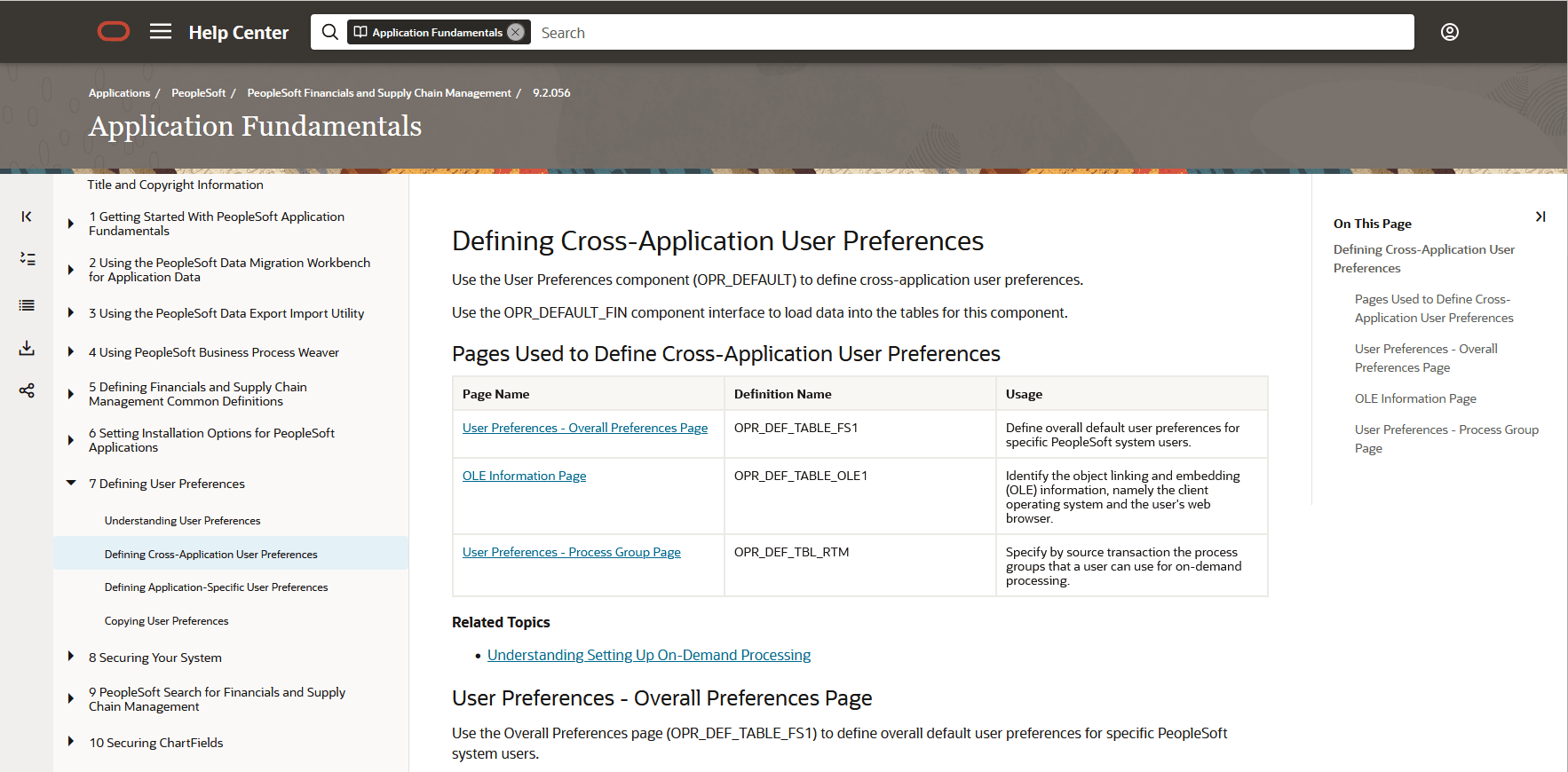
This example illustrates a typical online help page with the left sidebar expanded along with an On This Page sidebar on the right.
Using the On This Page Sidebar
The On This Page sidebar is displayed for certain topics that include subtopics. Select any subtopic in the right sidebar to scroll to that topic on the page.
Use the following buttons in the right sidebar:
| Field or Control | Description |
|---|---|
|
|
Select to hide or display the sidebar. |