Adoption Roadmaps
Adoption Roadmaps help you align feature adoption with your organization’s goals and timelines. By providing a single place to explore new features, plan adoption activities, and track progress, Adoption Roadmaps enable you to prioritize updates, monitor key initiatives, and adjust your approach as needs evolve, all within the context of your ongoing planning.
How Adoption Roadmaps Foster Collaboration
Designed for teamwork, you can comment, tag, assign features to team members, clone features, update statuses, and set due dates, making it easy to coordinate with your team and keep everyone informed.
Flexible Planning to Match Your Workflow
Adoption Roadmaps support a variety of planning styles. Organize features in either a Kanban or list view, move features between categories, rename categories, search and filter for key items, and download the filtered feature list so you always have the information you need. You can also view the activity history for any feature to keep track of changes.
Plan with Adoption Roadmaps
Adoption Roadmaps give you a central place to plan feature adoption and manage your ongoing activities. From adding features to customizing categories and exporting data, you can efficiently organize and track adoption work to fit your team’s preferred methods.
Add Features to Your Roadmap
As you assess features on the Feature Innovation page or in the Adoption Centers, you can add them to your roadmap for tracking and planning. Added features appear in the Saved Features section of the roadmap.
Note:
Only users with Admin or Production Team Member access can add features to a roadmap. Other users will not see the Roadmap column on feature list pages.To add a feature to a roadmap:
- Find the feature you want to add on the Feature Innovation page or in Adoption Centers.
- In the Roadmap column, select
 .
.
Note:
If a feature is already included in a roadmap, the icon appears gray and cannot be selected.
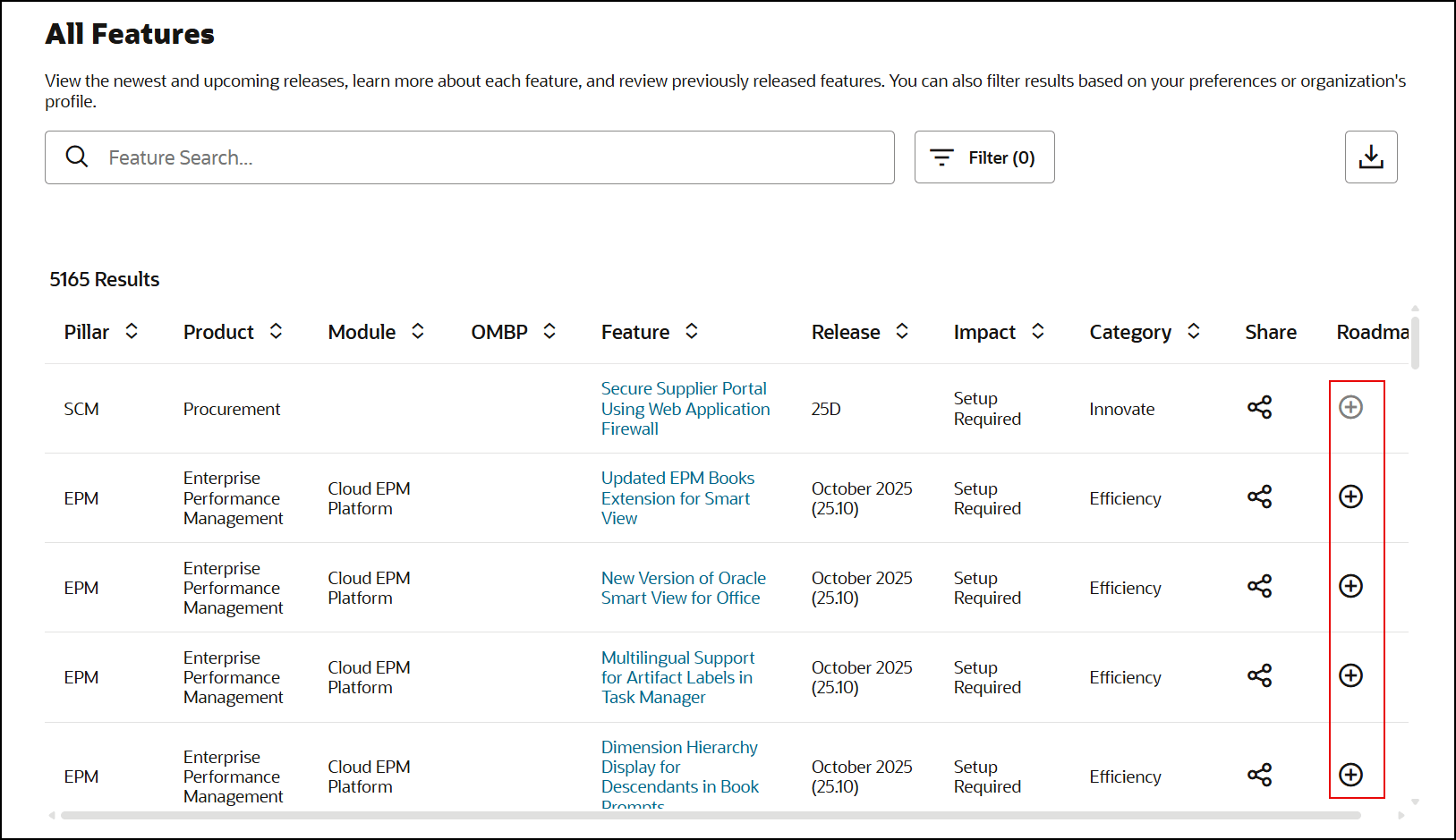
- Navigate to Adoption Roadmaps to find the added features in the Saved Features section of the roadmap.
Organize and Manage Your Roadmap
Manage your roadmap by categorizing, updating, and customizing features.
- On the home page, scroll to Adoption Roadmaps in the Innovate section, and select the roadmap you want to update.
- Switch between Kanban View and List View to organize features by your preferred view.
- Perform any of the following actions:
- Drag feature tiles from Saved Features–or any category–to other categories including the Not Applicable category..
-
Select a feature tile, then select Edit. You can update the status (Completed, Not Implemented, In Progress, Deferred, or Not Applicable), assign a team member, and set a due date and manage tags or comments from a single feature details drawer. Select Submit when finished.
Note:
Features marked as Completed move to the Completed Features list automatically. You can select a past, present, or future due date including backdated due dates. - Create custom items to track activities or initiatives that aren't tied to a specific feature.
- Clone features to create copies for additional planning or tracking scenarios.
- Remove features by selecting the feature tile, and then selecting Delete.
- Customize the column labels to fit any methodology or planning approach.
- Download the features displayed based on filters; only visible features are included in the export.
Tip: You can edit, clone or delete features directly from the Saved and Completed categories using the Edit menu
 on each feature tile.
Collaborate with Adoption Roadmaps
Coordinate and communicate efficiently as a team by leveraging all collaboration features within your roadmap:
- Assign responsibility: Assign team members to features and set due dates to drive accountability.
- Update feature details: Update the status (Completed, Not Implemented, In Progress, Deferred, or Not Applicable) to keep everyone informed of progress.
- Tag features: Use custom tags or our system tags (Redwood and AI) to further categorize features.
- Comment on features: Add comments to discuss or clarify tasks, decisions, or blockers. Use @ mentions to notify individuals directly and prompt action or feedback.
Note:
Assigned or mentioned team members receive notifications in the system. - Track changes: View the activity history for any feature to see updates, comments, and other actions.
To comment, tag, assign, or update feature details:
- Select a feature tile in the roadmap.
- Select the ellipsis on the feature card, and do any of the following:
- Select Edit to update status, assign a team member, set a due date, or manage tags or add comments from the features details drawer.
- Select Comments to write a comment and tag teammates using @.
- Select Submit to save your changes.
Filter, Search, View, Export, and Customize
You can filter or search features to quickly find what you need, view readiness information, export your adoption roadmap, and customize your categories to support the way your team works.
Filter and Search Features
Use filters and the search function to focus on features that matter most or to quickly locate a specific feature.
To filter or search for features:
- Select the roadmap you want to view.
- To filter: Select Filter and choose your categories, then select Apply to view the filtered results.
- To search: Use the search bar above the feature list to enter keywords or feature names.
View Feature Readiness Information
Review readiness details for any feature.
To view readiness information:
- Select the feature tile.
- Review the information in the drawer.
Note:
To see more detail on the Oracle Cloud Applications Update Readiness page, select .
.
Export Your Roadmap
Export your current roadmap view as a CSV file for offline review or sharing. The export respects the filters you've selected.
To export a roadmap:
- Go to the Adoption Roadmaps page.
- Select Actions, and then select Export.
Note:
The exported CSV includes only the features currently visible (filtered or searched), and categories such as Feature ID, Tags, URL, and Business Benefit.
Customize Category Names
Personalize your roadmap by renaming category labels to fit your team’s preferred methodology or process.
To rename a category:
- On the Adoption Roadmaps page, select the category name you want to update.
- Click the ellipsis (
 ) next to the column name.
- Select Rename and enter the new label.
- Select Submit.