Create and Configure a Topic
Create a topic to organize related agents and tools around a business area or purpose and provide users with a focused context for working with those resources.
When creating a topic, you can also grant users or roles access to the topic to control who can view, use, or manage it.
When a user starts a chat from a topic, the orchestrator can invoke the agents and tools associated with that topic. The orchestrator can invoke tools directly without routing requests through an agent.
You must have the appropriate Topics feature permission to create a topic. For information about topic permissions, see Understand Topic-Based Access.
- In the navigation panel, click Registry
 .
- On the Registry page, click the Topics tab
 .
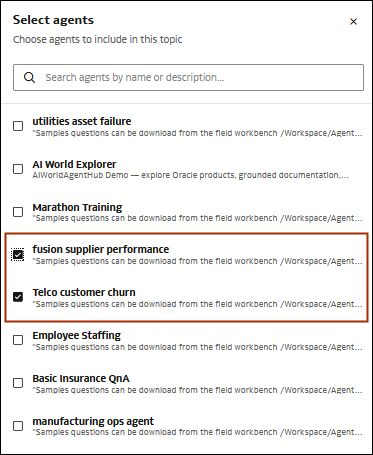
- In Select agents, click Set agents. In the Select agents panel, browse or search for and select the agents whose capabilities support the purpose of the topic. Click Done.
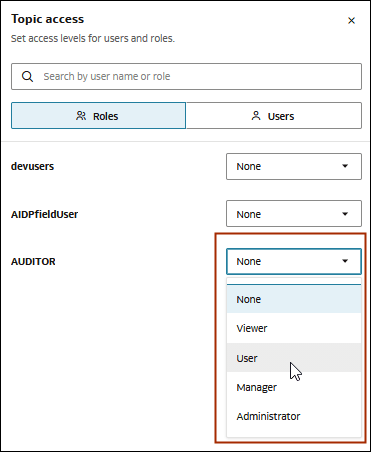
- In Topic access, click Set access. In the Topic access panel, select Roles or Users, locate the users or roles that you want to grant access to, and select the appropriate access level for each. Click Done.
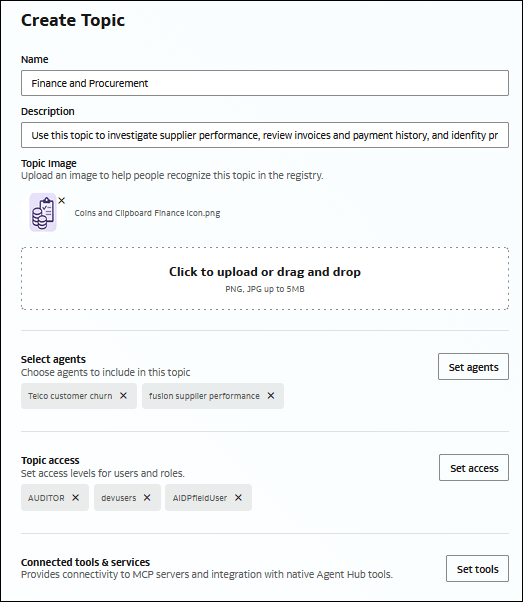
- In the Create Topic page, confirm the topic's settings.