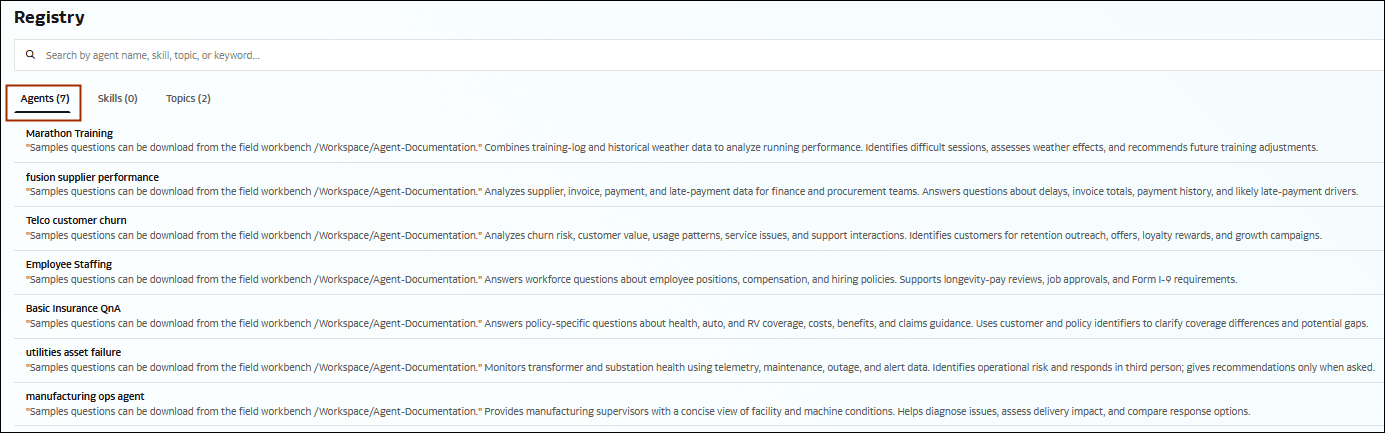
Select an Agent
Select an agent before entering a prompt when you know which agent you want to use for your task. You can select only agents that are available to you based on your access.
When you select an agent from the Registry, that agent remains associated with the conversation. You can't remove or replace the selected agent within the same chat. However, relevant MCP tools can still be invoked while processing your requests.
The same behavior applies when you explicitly tag an agent at the start of a chat.
To work with a different agent, start a new chat and select that agent.
For information about finding available agents, see Find and Select AI Resources
- In the navigation panel, click Registry
 .
- On the Registry page, click the Agents tab
 .
- Locate and select the agent you want to use.
- Optional: Click Attach
 if you want to provide your chat with additional context that the agent can use when processing your request.
- Click Send
 . Agent Hub starts a chat with the selected agent and displays the response.