Connect Using oac-mcp-connect
Use the oac-mcp-connect utility when your AI client launches a local stdio MCP server instead of connecting directly to a remote MCP endpoint. The utility manages the connection to Oracle
Analytics Cloud and can handle browser-based or token-file authentication on behalf of the client.
You can use the utility to connect to data and catalog MCP tools or agent MCP tools. The configured endpoint determines which tools are available.
Download the Connector
- On your Oracle
Analytics Cloud home page, click your user icon and then click Profile.
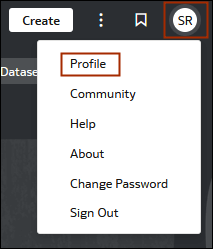
- In your user profile dialog, click MCP.
- Go to the MCP connector section and click Download.
- Unpack the downloaded ZIP file.
- Follow the installation instructions and review the README included with the utility.
The MCP connector section also provides a configuration example. Click Copy JSON to copy it, then update the local script path and configure your AI client according to the bundled README.
Connect to Data and Catalog MCP Tools
Use the following client configurations to connect to Oracle Analytics Cloud data and catalog MCP tools.
[mcp_servers.oac]
enabled = true
command = "node"
args = [
  "/absolute/path/to/oac-mcp-connect.js",
  "https://my-oac.example.com",
  "--sync"
]{
"mcpServers": {
"oac": {
"command": "node",
"args": [
"/absolute/path/to/oac-mcp-connect.js",
"https://my-oac.example.com",
"--sync"
]
}
}
}--headless and omit token-file arguments; the connector can open a browser when it needs a new login. For headless or non-interactive runs, use a token file downloaded from the OAC profile and pass it before --headless:[mcp_servers.oac_token]
enabled = true
command = "node"
args = [
"/absolute/path/to/oac-mcp-connect.js",
"https://my-oac.example.com",
"/absolute/path/to/token.json",
"--headless",
"--sync"
]The connector can also read a JSON config file for multiple OAC environments. Use the README in the utility bundle for the full set of options, including token paths, browser/headless mode, logging, custom headers, tool filters, and experimental/deprecated tool flags.
Connect to Agent MCP Tools
To connect to an agents endpoint, configure the bridge to route MCP traffic to the complete /api/mcp/agents URL, including a folder or agent identifier when required.
Use the endpoint-routing configuration supported by the README shipped with the downloaded bridge version. The client configurations below launch a prepared connector configuration file named agents-connector.json. That file must already select the correct OAC instance, authentication settings, and complete agents endpoint using the syntax supported by that bridge version. These examples describe how the client launches the prepared configuration; they do not define the connector's version-specific routing fields.
[mcp_servers.oac_agents]
enabled = true
command = "node"
args = [
  "/absolute/path/to/oac-mcp-connect.js",
  "--config",
  "/absolute/path/to/agents-connector.json"
]{
"mcpServers": {
"oac_agents": {
"command": "node",
"args": [
"/absolute/path/to/oac-mcp-connect.js",
"--config",
"/absolute/path/to/agents-connector.json"
]
}
}
}For interactive browser authentication, omit token-file and headless settings. For non-interactive operation, configure a token file obtained from OAC and the bridge's headless option according to the bundled README. Keep token material outside shared documentation. Consult that README for supported runtime versions, endpoint routing, browser and headless options, session handling, and tool filters.
After connecting, call tools/list and compare the returned tools with the Endpoint Availability for Agent Tools table in Available Oracle Analytics Cloud MCP Tools to verify that the connection uses the intended endpoint and scope.
If the bridge version can't preserve an agents endpoint, use a compatible bridge or a client that connects to the complete HTTP endpoint directly. See HTTP Session Initialization for direct HTTP examples using the agents endpoint.