Compose Expressions
Compose expressions to use in expression filters or in calculations using the Expression window. Expressions that you create for expression filters must be Boolean (that is, they must evaluate to true or false).
While you compose expressions for both expression filters and calculations, the end result is different. A calculation becomes a new data element that you can add to your visualization. An expression filter, on the other hand, appears only in the filter bar and can’t be added as a data element to a visualization. You can create an expression filter from a calculation, but you can’t create a calculation from an expression filter. See Create Calculated Data Elements and Build Expression Filters.
-
Generate an expression automatically by typing or speaking a natural language request in the AI Assistant box at the top of the expression builder. For example, you might type "What's the average Wait Time" to automatically generate the expression
AVG(Wait Time)and a description.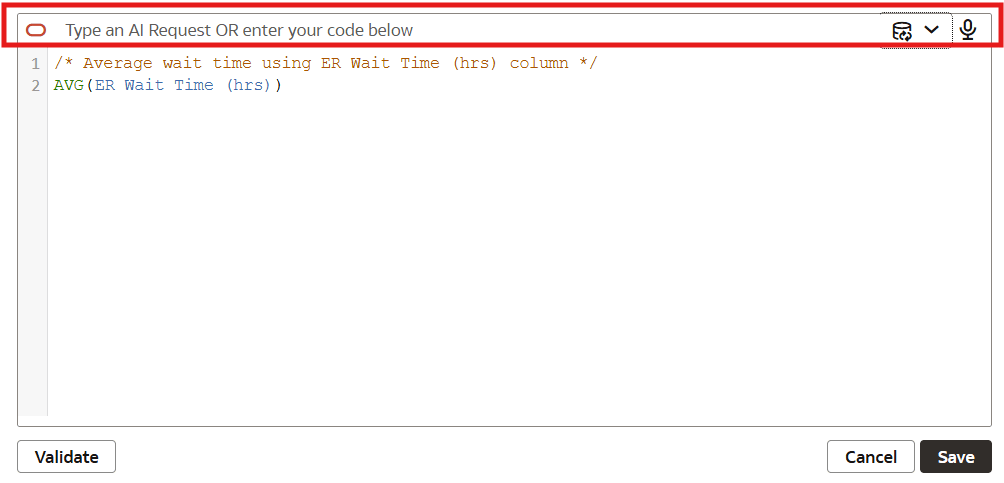
Description of the illustration expressionassistantforcalcs.png -
Directly enter text and functions in the Expression window.
-
Add data elements from the Data Elements pane (drag and drop, or double-click).
-
Add functions from the function panel (drag and drop, or double-click).