Configure the On Click Action Property for a Visualization
You can control what happens when a user clicks a data point in a visualization using the On click action property.
By default, if data actions are enabled, a consumer can select a data point in a visualization and then select an available data action to invoke. The On click action property offers a quicker way to invoke data actions. For information about enabling data actions, see Enable and Disable Data Actions.
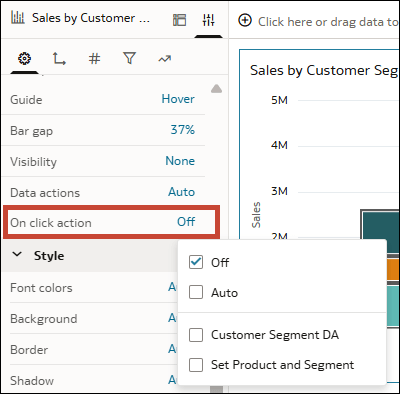
The On click action options are as follows:
- Off: Doesn’t invoke any data actions for selection when a consumer selects a data point. The consumer has to manually select a data action to invoke. This is the default.
- Auto: Invokes all the data actions anchored to the column when a consumer selects a data point.
- <Data action>: Invokes the specified data action when a consumer selects a data point. If more than one data action is available, you can select as many as you want to be invoked on click.
To configure the On click action property for tables and pivots, see Display Values in Tables and Pivots as Links.
- On your home page, hover over a workbook, click Actions, and select Open.
- Click a visualization to select it.
- Click Properties.
- In the On click action row, click the current setting and select another option.
- Click Save.