Configure Data Labels for a Range Chart
Add data labels to a range chart to show the start and end values of each range more clearly.
Use the Data Labels Position property in the Values tab of the Properties pane to add and position labels for a range. The default is Off and the other position options available depend on the type of range visualization you use. When you select an option for one measure, it's automatically applied to the other measure in the range.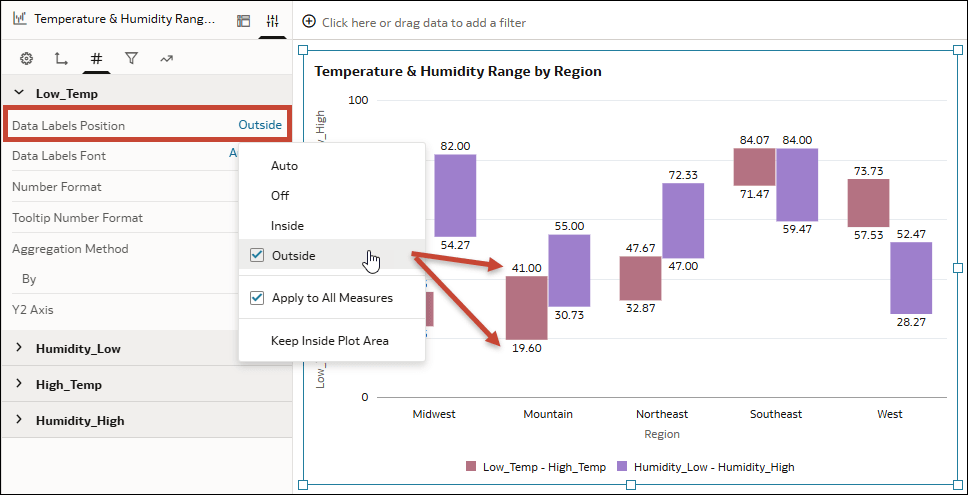
Description of the illustration range_data_label_position.png
You can configure the label position for additional ranges separately if you de-select the Apply to All Measures option. You can also use the Keep Inside Plot Area option to keep the labels from running outside of the chart borders.
Use the Data Labels Font and Number Format properties to further customize the labels.
- On your home page, hover over a workbook, click Actions, and select Open.
- Click the range visualization to select it.
- In the Grammar pane, click Properties, then click Values
 .
. - Expand a measure for the range that you want to configure.
- In the Data Labels Position row, click Off and select an option.
- In the Data Labels Font row, click Auto and configure the label font.
- In the Number Format row, click Auto, select a format, and configure the corresponding format options for the values.
- Click Save.