Create a Range Bar Chart
Add a Range Bar or Horizontal Range visualization to your workbook.
To create a range bar chart, you need the following columns:
- An attribute column for the categories on the x-axis (Range Bar) or y-axis (Horizontal Range)
- A measure column representing the start value for the range
- A measure column representing the end value for the range
For example, you can create a range bar chart to see the temperature ranges for different regions. You can use measure columns representing low temperatures for the start values and high temperatures for the end values, and an attribute column for the regions.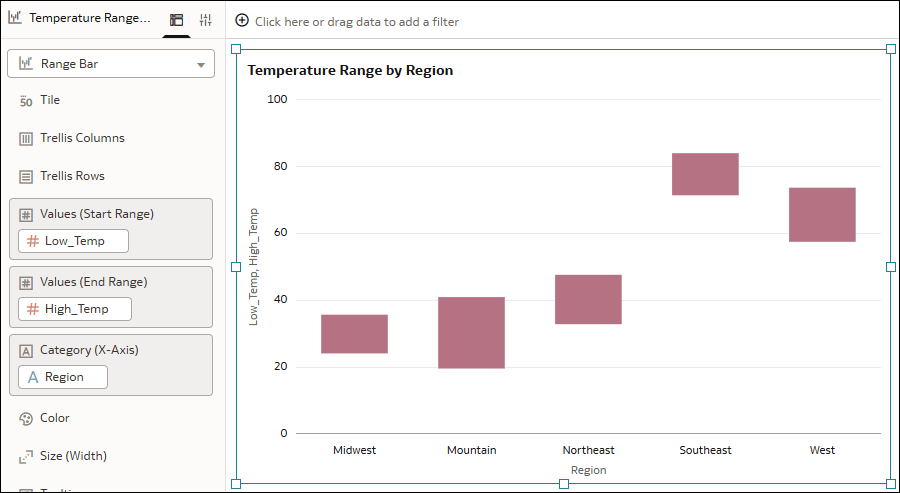
Description of the illustration range_bar_example.png
- On your home page, hover over a workbook, click Actions, and select Open.
- In the Data pane, click Visualizations.
- Under Bar, drag one of the range types to the canvas.
- Range Bar

- Horizontal Range

- Range Bar
- Click Data and drag an attribute column to Category (X-Axis) or Category (Y-Axis) in the Grammar pane.
- Drag a measure column to Values (Start Range).
- Drag a corresponding measure column to Values (End Range).
- Click Save.