Create a Time-Series Calculation in a Workbook
Use time-series calculations to compare measure values over time in a workbook. For example, you might want to analyze year-over-year (YoY) performance.
You can create time-series calculations in two ways:
- Use the guided user interface, as described here.
- Use the expression editor to write functions. See Time Series Functions.
Before you start, here're some tips:
- Include a date or time column - Make sure your dataset includes a date or time column. If the dataset is based on a subject area, make sure that the date or time column is defined in a hierarchy, such as Year - Quarter - Month - Week.
- Keep previous periods in your data - Don't filter out earlier periods. If you remove them, calculations can return null values.
- Avoid single-period datasets - If your data includes only one period, comparisons aren't possible.
- Use aggregated datasets when possible - Aggregated data can improve performance and simplify analysis.
- On your home page, hover over a workbook, click Actions, and select Open.
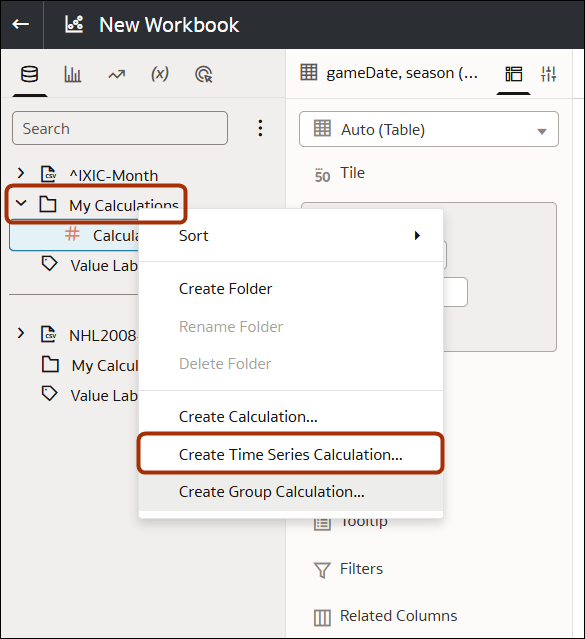
- In the Data Panel, right-click the My Calculations area for a dataset, and select Create Time Series Calculation.
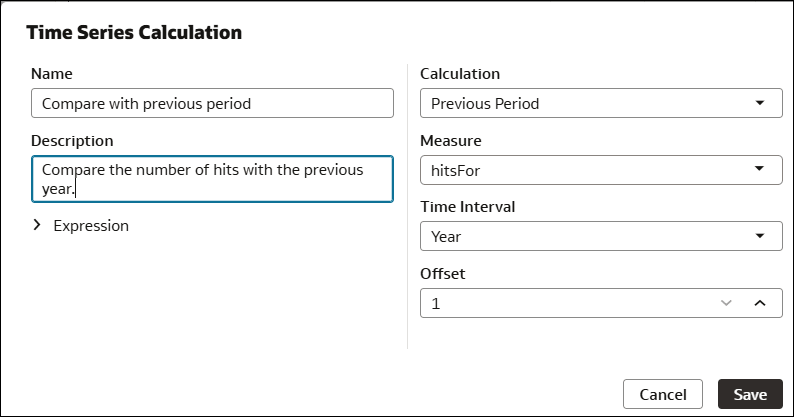
- Use the dialog to configure the calculation.
- Calculation - The type of time series calculation you want to use. For example, Previous Period.
- Measure - The measure you want to compare. For example, you might select WebHits to compare the number of website hits.
- Time Interval - The time-period you want to compare. You either select from a list of predefined values indicating the time level (for non subject-areas), or a level from a time hierarchy that shares the same business model as the measure (for non subject-areas). For example, select Year to compare values with those from a previous year.
- Offset - The number of time intervals to use for the comparison. For example, enter 3 to compare values from three months earlier.
- Expression (read-only) - View the underlying calculation specified by your selections.
- Click Save.
Drag the calculation onto the workbook canvas to start comparing measure values over time. Time series calculations only work in visualizations that have a time column (for subject areas or non-subject areas) or a time hierarchy (for subject areas) on one of their edges.