Customize Visualization Titles
You can customize a visualization title by entering your own title text directly on the canvas and applying rich text formatting to better describe the content of the visualization and improve readability.
Use the Title property in the General tab of the Properties pane to control the visualization title.
- Auto: Generates the visualization title automatically based on the columns used in the visualization. This is the default and you can’t apply any rich text formatting.
- None: Doesn’t display a visualization title.
- Custom: Lets you replace the default title with your own formatted text.
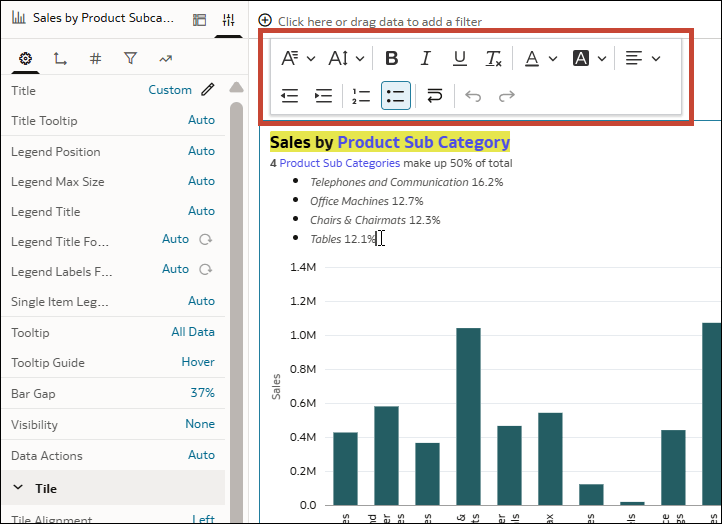
When you select Custom, you can modify or replace the default title text directly on the visualization. You can also use the formatting toolbar to apply rich text formatting such as font, size, emphasis, color, alignment, lists, and line wrapping.
To edit an existing custom title, click the pencil icon  beside Custom.
- To edit the visualization title text, do one of the following:
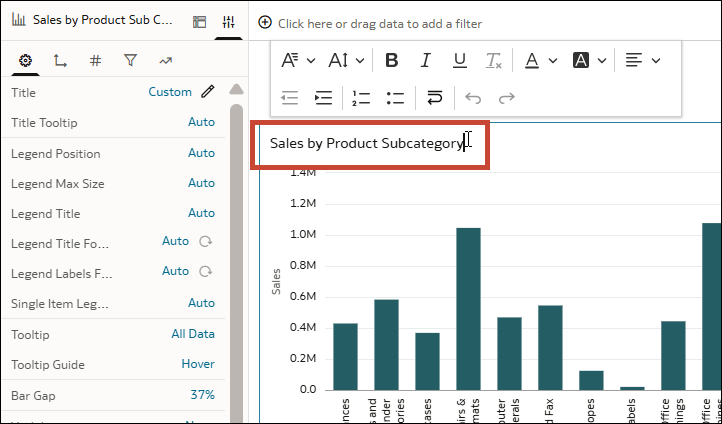
- Double-click the title text in the visualization and edit it. The Title row in the Properties pane changes to Custom automatically.
- In the Title row, click Auto and select Custom, then edit the title text in the visualization.
- Use the formatting toolbar to format the title text.