Duplicate a Canvas for Consumers
When configuring the presentation settings in manual mode, you can add the same canvas multiple times. You might add a canvas multiple times when you want consumers to see different filter values on each version of a duplicated canvas.
Any canvases that you duplicate when configuring presentation settings are saved to the consumer view and not to the workbook design in the workbook editor.
- On your home page, hover over a workbook, click Actions, and select Open.
- From the Preview menu
 , select Configure Presentation.
 - Go to the bottom of the page and locate the Canvases panel.
- In the Canvases panel, hover over a canvas, click the down arrow, and select
Duplicate Canvas.
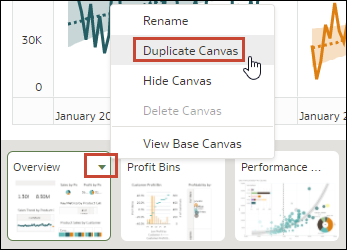
- Click the duplicate canvas and modify it.
- Click Save.