Remove a Duplicate Canvas for Consumers
When configuring the presentation settings in manual mode, you can delete any duplicate canvases from the consumer view.
The Delete Canvas option is only available for canvases that you duplicated. You can hide but not delete any other canvases for the consumer view.
Any changes that you make to the canvas display when configuring presentation settings are saved to the consumer view and not to the workbook design in the workbook editor.
- On your home page, hover over a workbook, click Actions, and select Open.
- From the Preview menu
 , select Configure Presentation.
 - Go to the bottom of the page and locate the Canvases panel.
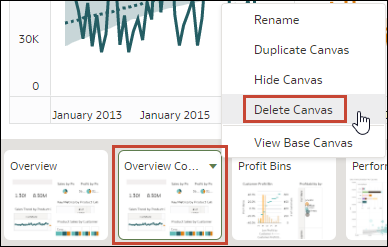
- In the Canvases panel, hover over a canvas, click the down arrow icon, and
select Delete Canvas.
- Click Save.